
How to Add New Features to an Existing WordPress Website
How to Add New Features to an Existing WordPress Website
Adding a new feature to an existing WordPress website can improve customer experience, reduce manual work, and support business growth. But installing the first plugin you find is rarely a safe plan. Every feature affects performance, security, compatibility, maintenance, and the visitor journey.
This practical guide explains how to add functionality to WordPress safely—from defining the requirement and choosing a plugin or custom solution to staging, testing, launch, and maintenance.
Start With the User Problem, Not the Tool
Write one clear outcome before comparing solutions. For example: “Visitors should be able to book a 30-minute appointment, pay online, and receive confirmation.” This is more useful than simply asking for a booking plugin.
Feature Brief Checklist
- Who will use the feature?
- What task must they complete?
- What information must be collected or displayed?
- Which emails, payments, accounts, or integrations are involved?
- What should happen when something fails?
- Who will manage the feature after launch?
- Are privacy, accessibility, or legal requirements relevant?
Audit the Existing WordPress Website
Record the WordPress version, theme, active plugins, hosting environment, PHP version, caching, security tools, user roles, backups, and connected services. Check whether the site already includes unused functionality that can meet the need.
The official WordPress plugin management documentation explains the basic activation, deactivation, update, and deletion workflow.
Choose the Right Implementation Method
| Method | Best for | Main consideration |
|---|---|---|
| Existing plugin | Common, well-defined requirements | Quality, support, updates, and unnecessary extras |
| Plugin add-on | Extending a tool already in use | Version and licensing compatibility |
| Theme or builder setting | Presentation and layout controls | Avoid locking important business data to design |
| Custom plugin | Unique workflows or integrations | Development, documentation, security, and maintenance |
| External service integration | Specialized systems such as CRM or booking | API limits, privacy, cost, and failure handling |
Evaluate Plugins Before Installation
- Confirm the feature matches the requirement.
- Review recent updates, compatibility, documentation, and support.
- Check the developer or company behind it.
- Understand free, paid, renewal, and add-on costs.
- Review what data it collects and where data is stored.
- Avoid overlapping plugins that solve the same task.
- Test performance and database impact on staging.
The official WordPress Plugin Handbook is a useful reference when assessing or developing WordPress functionality.
Use a Custom Function Only When Appropriate
A small, carefully maintained custom function can be suitable for a narrow site-specific change. Important business functionality is generally safer in a dedicated custom plugin so it remains available when the theme changes. Never paste unknown code into a live site.
For theme-related code, review the official guidance on WordPress child themes.
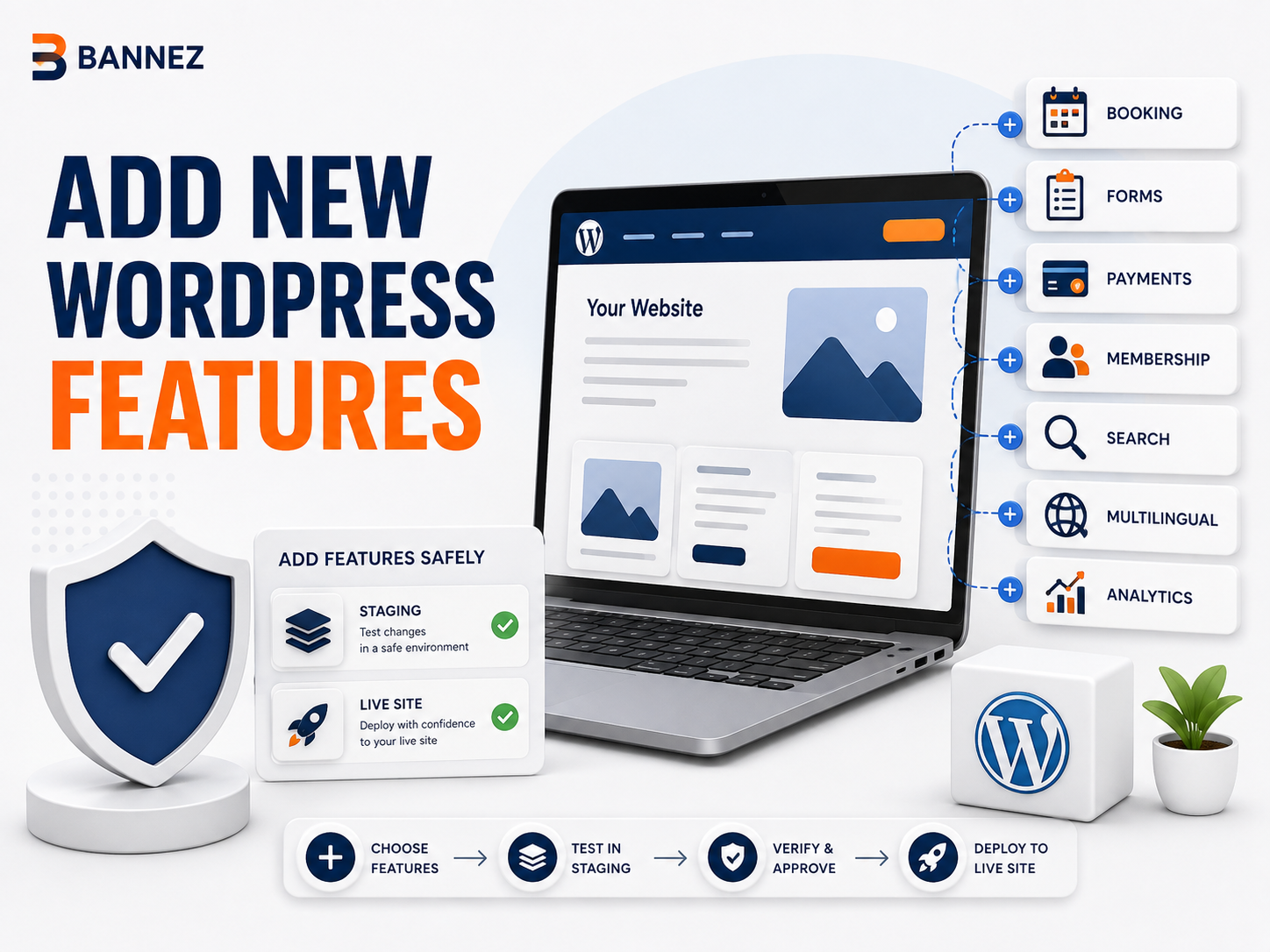
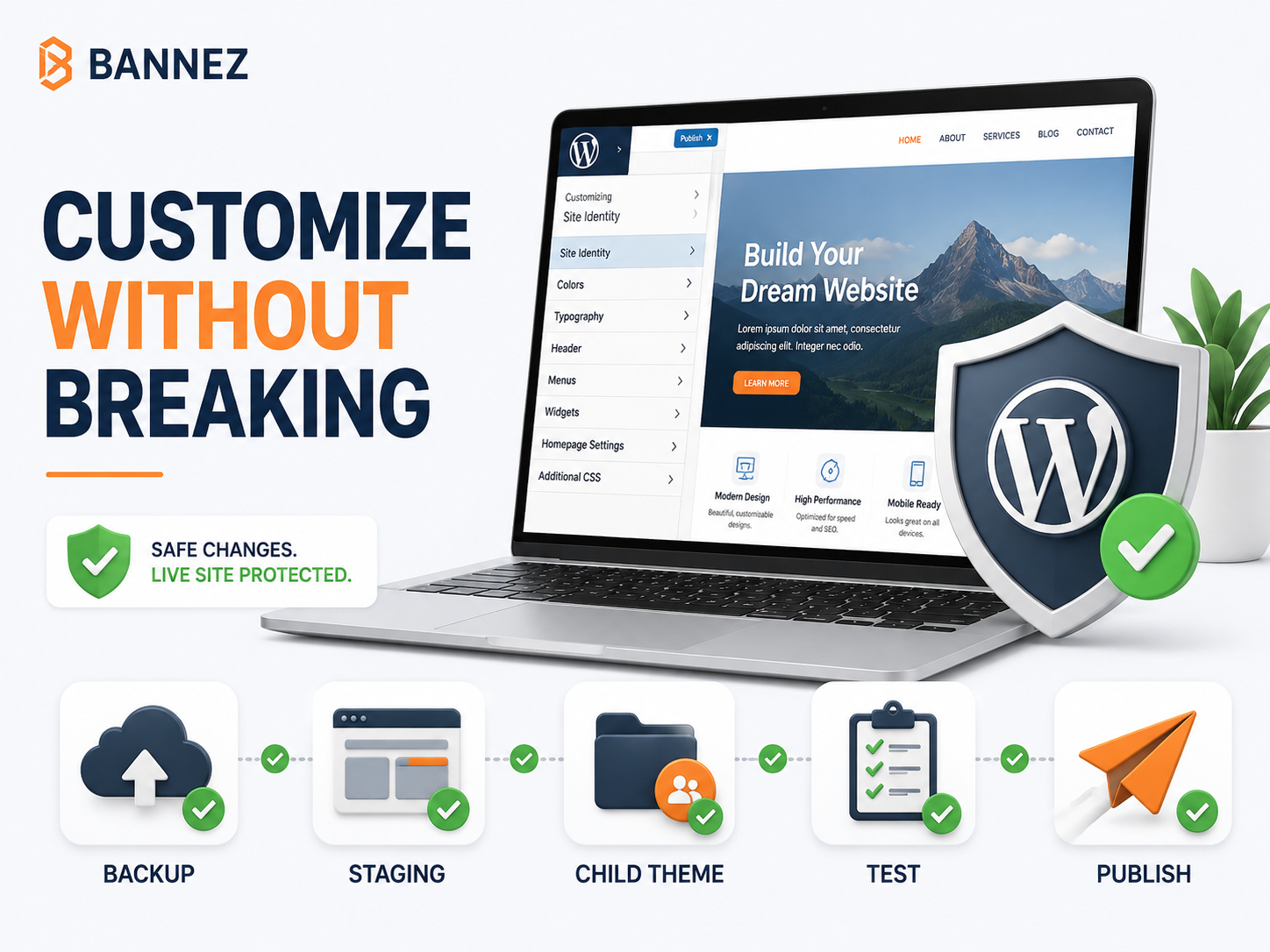
Create a Backup and Staging Copy
Take a verified files-and-database backup, then perform meaningful changes on staging. Staging should mirror the live site’s theme, plugins, PHP version, and important configuration without exposing private production data unnecessarily.
Implement the Feature Step by Step
- Update the staging site and create a fresh backup.
- Install or develop only the selected solution.
- Configure permissions, notifications, integrations, and error messages.
- Add the feature to the correct page or template.
- Apply responsive and accessible styling.
- Document settings, licences, code, and ownership.
- Test the complete workflow using realistic scenarios.
Test More Than the Happy Path
Functional Testing
- Valid and invalid inputs
- Empty, duplicate, delayed, and cancelled actions
- Email delivery and payment status
- User roles and permissions
- API or third-party service failure
Website Regression Testing
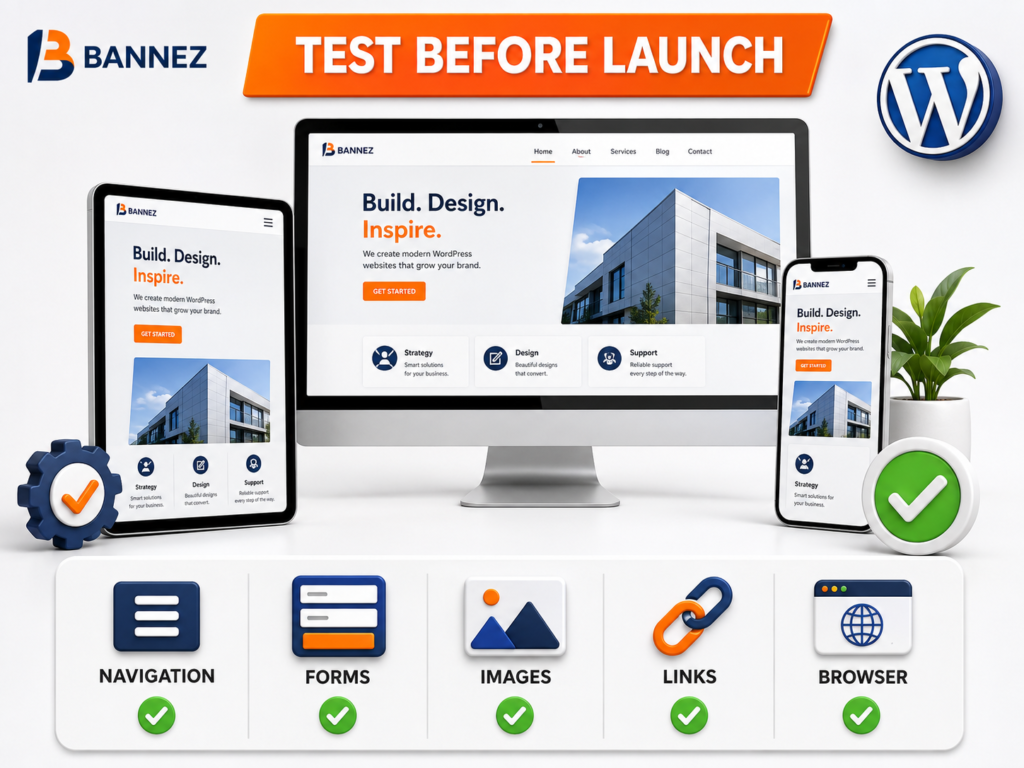
- Header, footer, menus, search, and forms
- Homepage, services, blog, account, cart, and checkout
- Desktop, tablet, and mobile layouts
- Supported browsers and keyboard navigation
- Page speed, caching, analytics, and SEO output
Review Security, Privacy, and Accessibility
Use least-privilege permissions, validate and sanitize data, keep software updated, protect forms from abuse, use secure connections, and define retention rules. Provide labels, instructions, keyboard access, visible focus, clear errors, and sufficient contrast. The WordPress security API documentation covers core development practices.
Launch the New Feature Safely
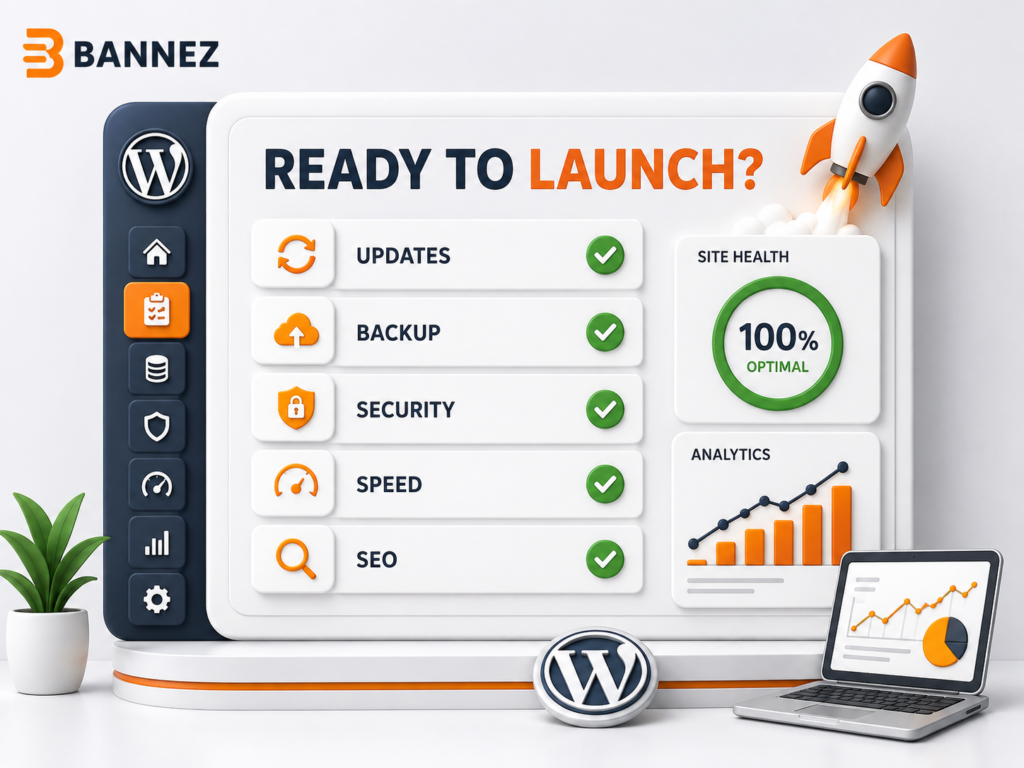
- ☐ Stakeholder approval completed
- ☐ Final backup verified
- ☐ Deployment steps documented
- ☐ Cache and CDN plan prepared
- ☐ Live configuration and licences checked
- ☐ Critical workflow tested on production
- ☐ Analytics and logs monitored
- ☐ Rollback owner and trigger defined
Maintain the Feature After Launch
Assign an owner, renew licences, apply updates safely, retest critical workflows, monitor logs and user feedback, and remove obsolete integrations. A feature without a maintenance plan becomes technical debt.
Professional Help for WordPress Features
If the feature requires theme changes, plugin integration, custom layouts, or careful staging and testing, explore our Complete WordPress Website Customization service. Share the existing site, required workflow, integrations, reference examples, and expected outcome so the scope can be evaluated accurately.
Frequently Asked Questions
Can I add features without changing my WordPress theme?
Yes. Many features belong in plugins or integrations and can work independently of the theme, although front-end styling may still be needed.
How many plugins are too many?
There is no universal number. Quality, overlap, database work, loaded assets, security, and maintenance matter more than the count alone.
Should I add a feature directly to the live site?
Minor reversible settings may be low risk, but meaningful functionality should be backed up and tested on staging first.
Will a new plugin slow down the website?
It can. Measure representative pages and workflows before and after implementation instead of assuming.
Conclusion
To add new features to an existing WordPress website safely, define the user outcome, audit the current system, select the smallest maintainable solution, and test it on staging. Include security, accessibility, performance, failure cases, documentation, and ongoing ownership in the plan.
A successful feature is not merely installed—it works reliably, fits the visitor journey, and remains maintainable after launch.
