
How to Customize a WordPress Theme Without Breaking Your Website
How to Customize a WordPress Theme Without Breaking Your Website
WordPress theme customization can improve your branding, layout, and user experience, but unsafe edits can cause errors or disappear after an update. The safest approach is to protect the live website, use the tools supported by the theme, and test every important change before publishing it.
This guide explains how to customize a WordPress theme without breaking your website, whether you use a classic theme, block theme, page builder, custom CSS, or child theme.
Safe WordPress Theme Customization Workflow
- Create a complete, restorable backup.
- Make changes on a staging website.
- List the exact changes you need.
- Use built-in settings before adding code.
- Use a child theme for suitable file-level changes.
- Change one area at a time.
- Test desktop, tablet, mobile, forms, and navigation.
- Publish carefully and create another backup.
1. Create a Full Backup Before Customizing
Back up both the database and website files. The database contains content and many settings, while files include themes, plugins, uploads, and code. Confirm that the backup can be restored; a backup you cannot recover is not enough protection.
When to Create Additional Backups
- Before activating a different theme
- Before updating WordPress, a theme, or a page builder
- Before changing templates or theme files
- Before moving staging changes to the live website
- After the completed website has been tested
2. Use a Staging Website
A staging website is a private copy used for testing. It allows you to discover broken layouts, plugin conflicts, and code errors without affecting visitors, customers, orders, or search engines.
Protect staging from public access and search indexing. Refresh it carefully when the live site contains changing data such as orders, users, comments, or form submissions.
3. Decide What You Actually Need to Change
Create a written list for the logo, colors, fonts, header, footer, navigation, homepage sections, inner pages, forms, and mobile layout. Clear requirements prevent random edits and unnecessary plugins.
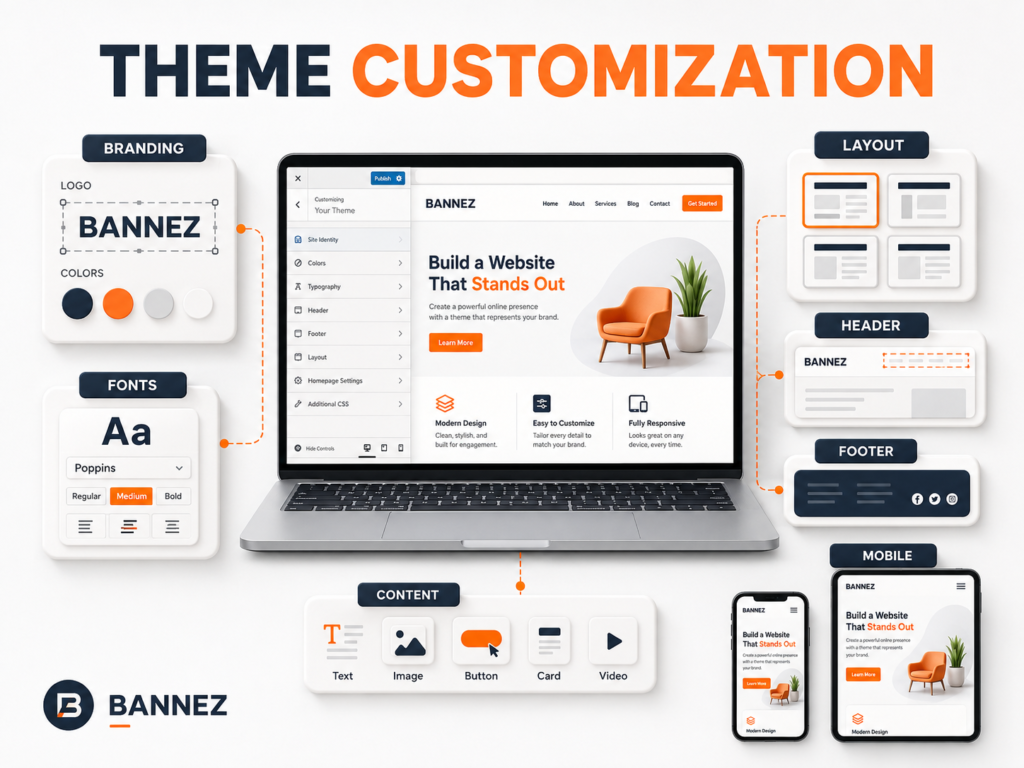
4. Use the Safest Available Customization Method
| Method | Best for | Risk level |
|---|---|---|
| Theme options | Settings provided by the theme | Low when used correctly |
| Site Editor or Customizer | Global styles, templates, and supported appearance changes | Low to moderate |
| Page builder | Page layouts supported by the active builder | Moderate; test responsive output |
| Additional CSS | Focused visual adjustments | Moderate; selectors may change |
| Child theme | Selected template, style, or function changes | Moderate to high; requires technical care |
| Direct parent-theme edits | Not recommended for lasting changes | High; updates can overwrite them |
For Block Themes
Use Appearance > Editor for supported templates, template parts, navigation, and global styles. The official WordPress Site Editor guide explains how block themes manage pages, styles, templates, and patterns.
For Classic Themes
Use Appearance > Customize when the active theme supports it. WordPress notes in its Customizer documentation that the Customizer can preview supported changes before publishing them.
5. Do Not Edit the Parent Theme Directly
Changes made directly inside parent-theme files can be overwritten when the theme updates. This may remove your CSS, templates, or functions without warning.
When a Child Theme Is Useful
A child theme can safely hold selected changes while using its parent theme as the base. The official WordPress child-theme documentation explains how a child theme inherits from a parent and can override selected parts.
A child theme does not make unsafe code safe automatically. Incorrect PHP or outdated template overrides can still cause errors, so test changes and maintain them after updates.
6. Make Small, Trackable Changes
- Change one component or related group at a time.
- Record what was changed and where.
- Keep copies of code before replacing it.
- Use clear names for custom templates and CSS classes.
- Test immediately instead of waiting until the end.
Small changes make it easier to identify the cause when something breaks.
7. Avoid Plugin Overload
Do not install a new plugin for every small visual change. First check whether WordPress, the theme, or your current builder already provides the feature. When a plugin is necessary, review its maintenance, compatibility, documentation, and support.
Test Plugin Conflicts on Staging
After installing a plugin, check the editor, front end, forms, login, mobile navigation, and any store or membership functions. Keep only plugins that provide clear value.
8. Protect Responsive Design
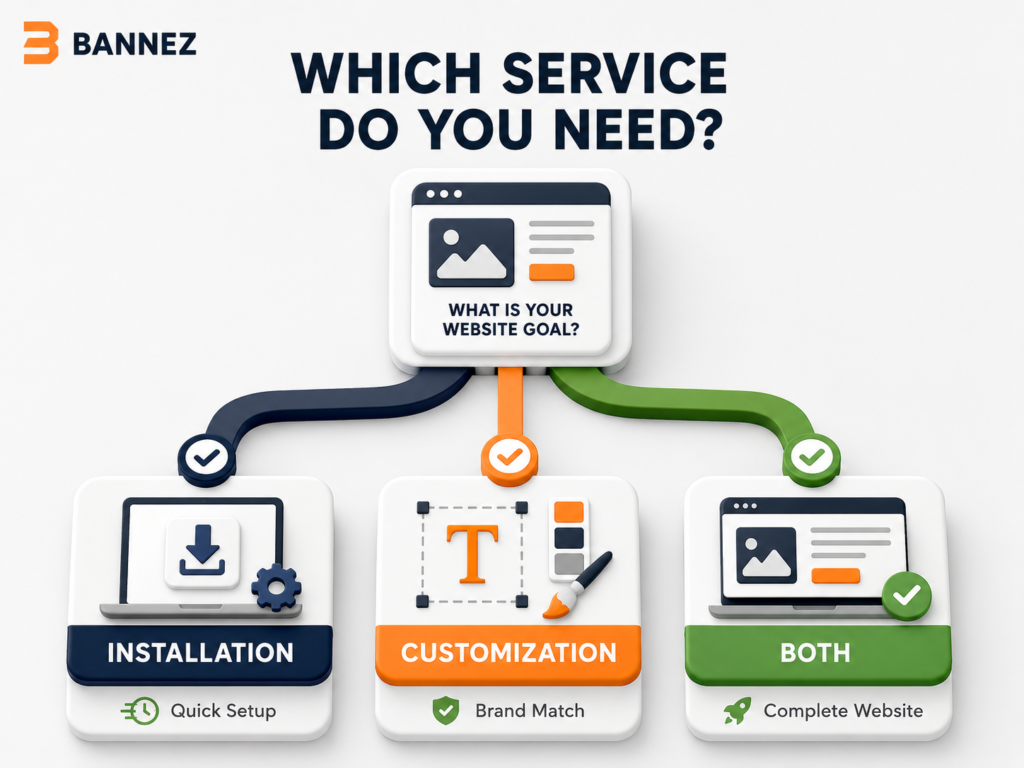
A layout that looks correct on desktop may fail on mobile. Check font sizes, spacing, columns, images, menus, forms, popups, sticky elements, and buttons at several screen widths.
- Avoid fixed widths that exceed small screens.
- Use responsive image sizes.
- Keep tap targets large enough to use.
- Check whether reordered columns still make sense.
- Test real devices when possible.
9. Test Functions, Not Only Appearance
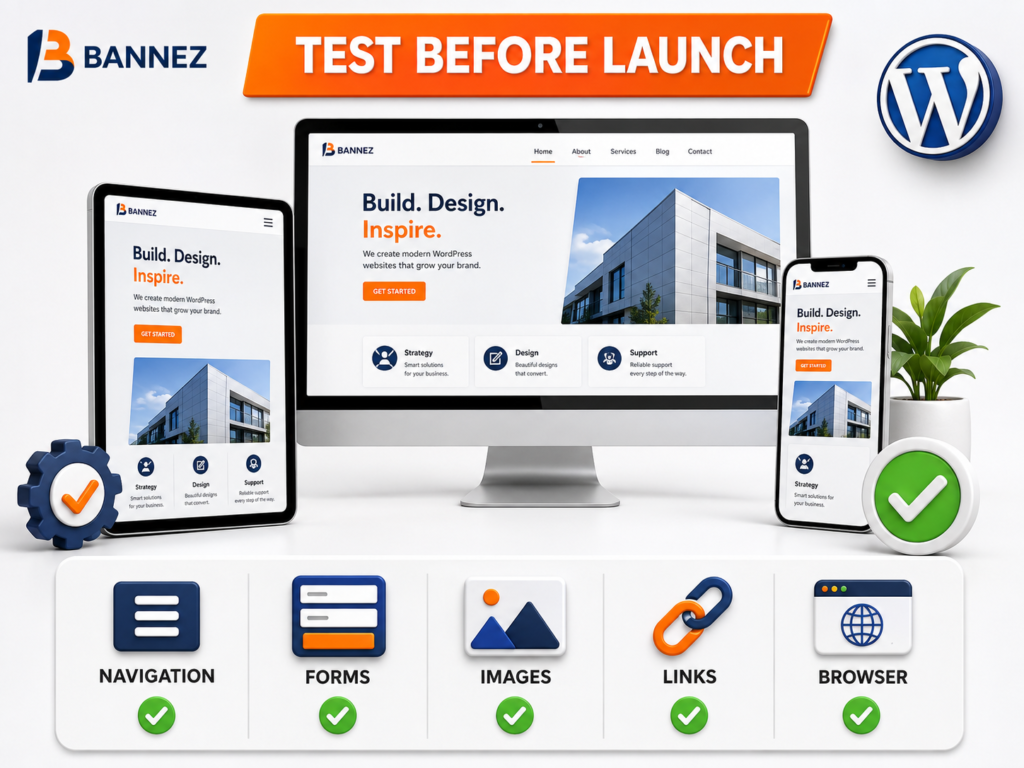
Theme changes can affect more than design. Test:
- Header, footer, desktop menu, and mobile menu
- Contact, login, registration, and newsletter forms
- Buttons, internal links, external links, and downloads
- Blog archives, search, 404 page, and pagination
- Product, cart, checkout, and account pages when applicable
- Accessibility basics such as keyboard focus and contrast
- Major browsers and common device sizes
10. Review Updates Before and After Launch
Updates can include security fixes and compatibility changes, but they may expose outdated overrides or plugin conflicts. Back up, update on staging, clear caches, and repeat the critical tests before updating the live website.
Common Mistakes That Break WordPress Themes
- Editing parent-theme files directly
- Pasting unverified PHP into the theme editor
- Making live changes without a backup
- Installing overlapping page builders or optimization plugins
- Using overly broad CSS selectors
- Ignoring cached versions after changes
- Updating everything at once without testing
- Replacing a theme on an established site without staging
What to Do If a Customization Breaks the Website
- Stop making additional changes.
- Record the exact error and the last change made.
- Clear browser, plugin, server, and CDN caches where appropriate.
- Reverse the last change on staging.
- Use hosting recovery or file access if the dashboard is unavailable.
- Restore the known-good backup when a safe manual rollback is not possible.
- Find the root cause before applying the change again.
When Professional Help Is Useful
If you have a theme but need its pages, branding, header, footer, content sections, and responsive layout customized, you can explore our Complete WordPress Website Customization with Any Theme service. Our team works within the agreed scope and the supplied theme’s available capabilities.
Frequently Asked Questions
Can I customize a WordPress theme without coding?
Yes. Many changes can be made through theme options, the Site Editor, Customizer, blocks, or a supported page builder. Code is needed only for requirements these tools do not provide.
Do I always need a child theme?
No. Settings stored through supported editors do not always require one. A child theme is useful for selected file-level or code changes that should remain separate from the parent theme.
Can an update break customizations?
It can expose compatibility problems or overwrite direct parent-theme edits. Use supported methods, a child theme where appropriate, backups, staging, and update testing.
Is custom CSS safe?
Focused, valid CSS is often safer than editing templates, but it can still cause layout problems or stop working when markup changes. Document and test it.
Conclusion: Customize Through a Controlled Process
Safe WordPress customization depends on process: back up, use staging, choose the least risky tool, avoid direct parent-theme edits, make small changes, and test functions as well as design.
Do not publish simply because the homepage looks correct on one screen. Verify responsive layouts, navigation, forms, important templates, updates, and recovery options so the website remains reliable after the customization is complete.
