
How to Find and Delete Duplicate Images in WordPress Automatically
Duplicate and unused images can slowly fill your WordPress Media Library. They can increase storage use, make backups larger, and make media management harder. The good news is that you can scan for duplicate or unused images automatically, but you should never delete files without checking where they are used.
This guide explains how to find and delete duplicate images in WordPress automatically with a safe review-first process.
Why Duplicate Images Build Up in WordPress
Duplicate media can appear for many reasons. You may upload the same image more than once, rebuild pages, import demo content, migrate a site, change themes, or replace old images without removing the previous files.
- The same file was uploaded more than once.
- Old page designs left unused images behind.
- A migration or import created extra media.
- Plugins or themes generated extra image files.
- Old products or posts were removed but their media stayed.
Duplicate Images and Unused Images Are Not the Same
Duplicate Images
A duplicate image is another copy of the same or very similar file. A duplicate may still be used somewhere on your website, so finding a duplicate does not automatically mean it is safe to delete.
Unused Images
An unused image is a media file that a scanner cannot find in your current website content. Even this result should be reviewed because themes, page builders, custom fields, CSS, or code can sometimes use media in ways a basic scanner may not detect.
Step 1: Back Up Your Website First
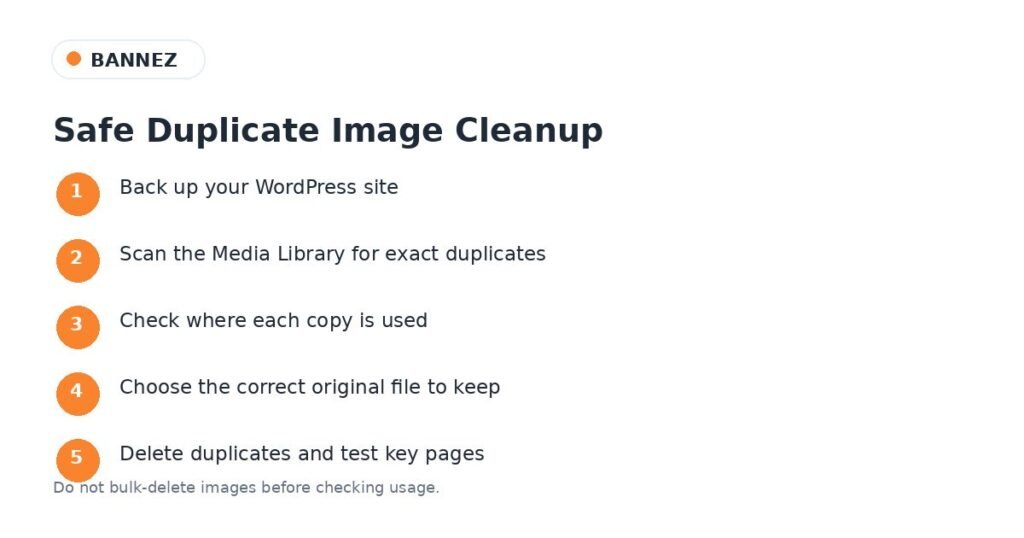
Before deleting media, create a full backup of your website files and database. This is important because a deleted image may be used on a page, product, theme setting, or custom field that you did not notice.
WordPress.org plugin pages for media-cleaning tools also recommend taking a backup before bulk deletion. For example, the official Media Cleaner listing on WordPress.org recommends a solid backup plan before cleanup.
Step 2: Install a Media Cleanup Plugin
WordPress does not include a complete built-in duplicate image scanner. A media-cleaner plugin can scan your site and help you review files faster.
There are several options in the WordPress.org media cleaner directory. Some tools focus on unused media, while others also detect duplicate files.
What to Look for in a Cleanup Plugin
- Duplicate file detection
- Usage scanning across posts and pages
- Support for page builders and WooCommerce if you use them
- A review screen before deletion
- Trash or restore support
- Clear information about what was scanned
For example, the WordPress.org listing for AssetBroom says it can detect duplicate media and check where images are used. Other tools such as Media Cleaner focus strongly on identifying unused media and provide a trash workflow.
Step 3: Run the Scan
Open the plugin’s media-cleaner page and start a scan. A larger website can take longer because the plugin may need to check posts, pages, products, metadata, and media records.
Do not start by enabling automatic permanent deletion. First use the scan as a report. The goal is to understand what the tool finds before any file is removed.
Step 4: Review Duplicate Files Carefully
When the scan finds duplicate images, compare the files before deleting anything.
- Check the file name.
- Check image dimensions.
- Check upload date.
- Check where each attachment is used.
- Choose the best original copy to keep.
- Check featured images, product galleries, page builders, and custom fields.
Step 5: Move Files to Trash Before Permanent Deletion
If your cleanup plugin offers an internal trash or restore feature, use it. This gives you time to test the website before the file is permanently removed.
The current WordPress.org page for Media Cleaner describes an internal trash feature that lets users preview and confirm changes before permanent deletion. A review-first workflow is much safer than instant bulk deletion.
Step 6: Test Important Pages
After moving duplicate or unused images to trash, check your website before permanently deleting them.
- Homepage
- Service pages
- Blog posts
- Product and category pages
- Mobile layout
- Header and footer
- Forms and popups
- Elementor or other page-builder templates
Can You Delete Duplicate Images Automatically on a Schedule?
Some plugins offer scheduled cleanup or automatic scanning. However, fully automatic deletion is more risky than automatic scanning. A safer approach is to let the plugin scan automatically and keep human review before permanent deletion.
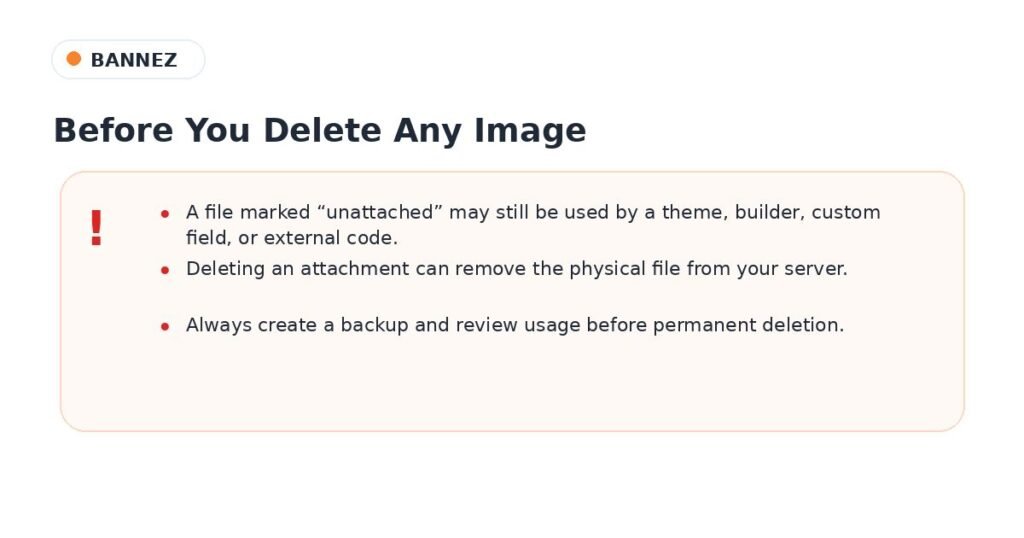
Do Not Trust the “Unattached” Filter Alone
An image shown as unattached is not always unused. A file can still be used by a page builder, custom field, theme option, widget, CSS, or other system. This is why a deeper usage scan is better than deleting everything shown under a simple unattached filter.
Will Deleting Duplicate Images Make WordPress Faster?
Removing duplicate or unused media mainly helps storage, backups, and Media Library organization. It does not automatically make every page load faster because files that are not used on a page are normally not downloaded by visitors.
For website speed, image compression, correct dimensions, caching, and a fast theme are also important. If your WordPress site needs a broader performance-focused build, see our Fast and Responsive WordPress Website service.
Safe WordPress Media Cleanup Checklist
- Create a full backup.
- Use a trusted scanner.
- Scan first and delete later.
- Check where every important image is used.
- Keep the best original copy.
- Use trash or restore when available.
- Test important pages after cleanup.
- Permanently delete only after you are confident the site is working.
Frequently Asked Questions
Can WordPress automatically find duplicate images?
WordPress itself does not provide a complete duplicate scanner, but media-cleaner plugins can scan for duplicate or unused files automatically.
Is it safe to delete all unattached images?
No. Unattached does not always mean unused. Check page builders, custom fields, themes, products, and other places before deleting an image.
Should I use automatic permanent deletion?
For most sites, automatic scanning with manual review is safer. Permanent deletion should happen only after you have a backup and have checked the results.
Conclusion
You can find duplicate images in WordPress automatically with a media-cleaner plugin, but safe deletion still needs review. Back up your website, scan for duplicate and unused files, check where each image is used, move questionable files to trash, and test your site before permanent deletion.
This approach gives you the benefit of automation without turning a simple Media Library cleanup into a broken-page problem.
