
How to Fix Common Ad Manager and Website Ad Setup Problems
Website ads can fail even when your ad network account is approved. The problem may be a broken tag, wrong inventory setup, blocked script, ads.txt issue, consent configuration, or a layout problem on the website.
This guide explains how to fix common Google Ad Manager and website ad setup problems using a practical troubleshooting process.
Start by Identifying the Type of Problem
- No ad appears at all.
- Some ad units work and others are empty.
- Ads work on desktop but not mobile.
- Ads.txt shows a warning.
- Ad units overflow the page.
- Revenue or fill suddenly drops.
- Ads load only for some visitors.
- Google Ad Manager inventory is not delivering as expected.
Common Ad Setup Problems and Fixes
1. The Ad Tag Is Missing or Broken
Compare the website code with the exact tag generated by your ad platform. Check for missing script sections, changed IDs, or code inserted inside another script incorrectly.
2. Wrong Ad Unit or Inventory ID
If the page requests an ad unit that does not match your Ad Manager setup, delivery can fail. Confirm network code, ad unit path, sizes, and targeting.
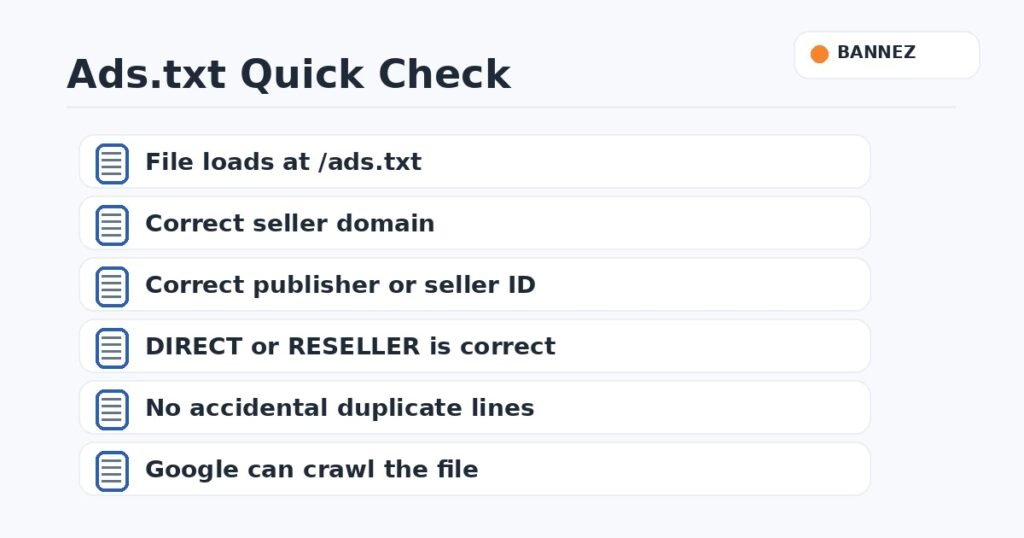
3. Ads.txt Is Incorrect
Open your public /ads.txt file and verify seller IDs and DIRECT or RESELLER relationships. Wrong or missing authorization can reduce eligible demand.
4. Security Tools Block Ad Scripts
Content Security Policy rules, WordPress security plugins, CDN settings, script optimizers, or consent tools can block or delay advertising scripts. Test with browser developer tools and review blocked network requests.
5. Consent Is Preventing Personalized Demand
Depending on user location and consent status, ad requests may be limited or changed. Make sure your consent-management setup follows the requirements of your ad platform and the regions you serve.
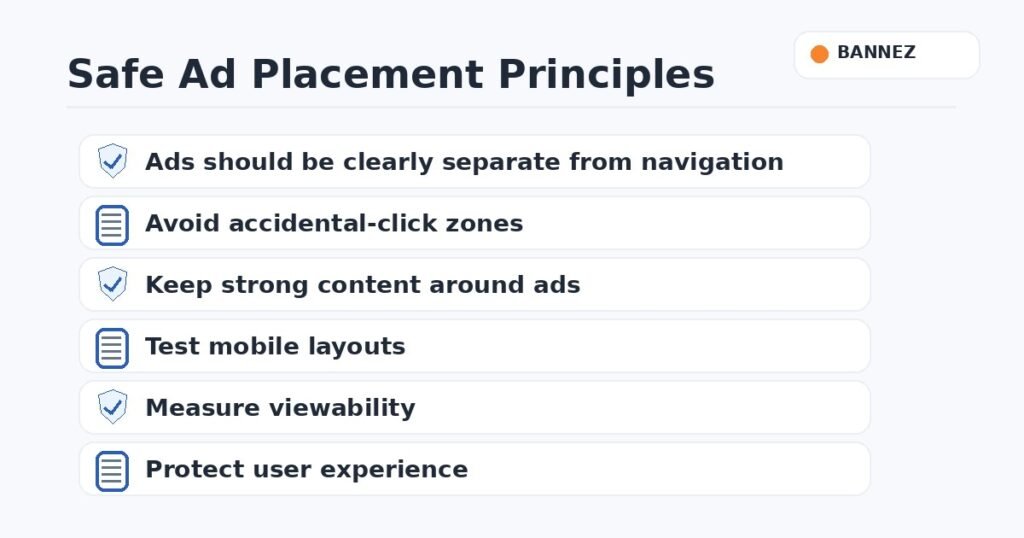
6. Responsive Sizes Do Not Fit the Layout
Check container width, CSS overflow, responsive size mappings, and sticky elements. Test common phone, tablet, and desktop widths.
7. Ad Slots Are Hidden by CSS
A display:none rule, zero-height container, overflow rule, z-index conflict, or theme layout can hide an ad even when the request succeeds.
8. Page Caching Serves Old Ad Code
After changing tags, clear WordPress cache, CDN cache, optimization cache, and browser cache where appropriate. Verify the public HTML instead of assuming the editor version is live.
9. There Is No Eligible Demand
An empty slot does not always mean broken code. Targeting, pricing, policies, consent, advertiser demand, geography, or account status may result in no eligible ad.
10. Policy or Account Restrictions Are Limiting Delivery
Check Google Ad Manager, AdSense, or your network dashboard for policy warnings, invalid traffic notices, payment holds, or account restrictions.
Ad Manager Troubleshooting Checklist
- Confirm ad unit path and network code.
- Check requested sizes.
- Verify line-item targeting where relevant.
- Check whether the request reaches the ad server.
- Review ads.txt.
- Check console and network errors.
- Test without conflicting optimization where safe.
- Check consent state.
- Test logged-out and private-browser sessions.
- Review policy and account status.
Need Help Fixing Your Website Ad Setup?
Bannez offers Fix Ads.txt Errors & Website Ad Setup Issues for common implementation problems. If you already have approved ad code and need it placed on your website, our Website Ad Placement & Ad Network Integration service may be the better fit.
Frequently Asked Questions
Why is an ad unit blank even though the code is correct?
There may be no eligible demand, targeting may not match, consent may limit the request, or the account may have a delivery restriction.
Can caching break ad code?
Yes. Some optimization tools can delay, combine, or rewrite scripts in ways that affect ad loading.
Should I keep changing the code until an ad appears?
No. Use a structured troubleshooting process so you know whether the issue is code, inventory, demand, consent, policy, or layout.
Conclusion
Most website ad setup problems can be traced to tags, inventory, authorization, consent, blocked scripts, responsive layout, caching, demand, or account status. Test each layer separately instead of making random changes.
