
How to Customize a Squarespace Website
Customizing a Squarespace website is not about changing every available setting. A professional result comes from creating a clear visual system, organizing content carefully, and making sure every design choice supports the visitor.
This guide shows a practical order for Squarespace customization so you can improve the look and usability of your site without turning the design into a collection of unrelated styles.
1. Start With Your Brand Basics
Create a simple brand checklist
- Primary and accent colors
- Heading and body fonts
- Button style
- Image style
- Logo versions
- Preferred section spacing
2. Customize Site-Wide Styles First
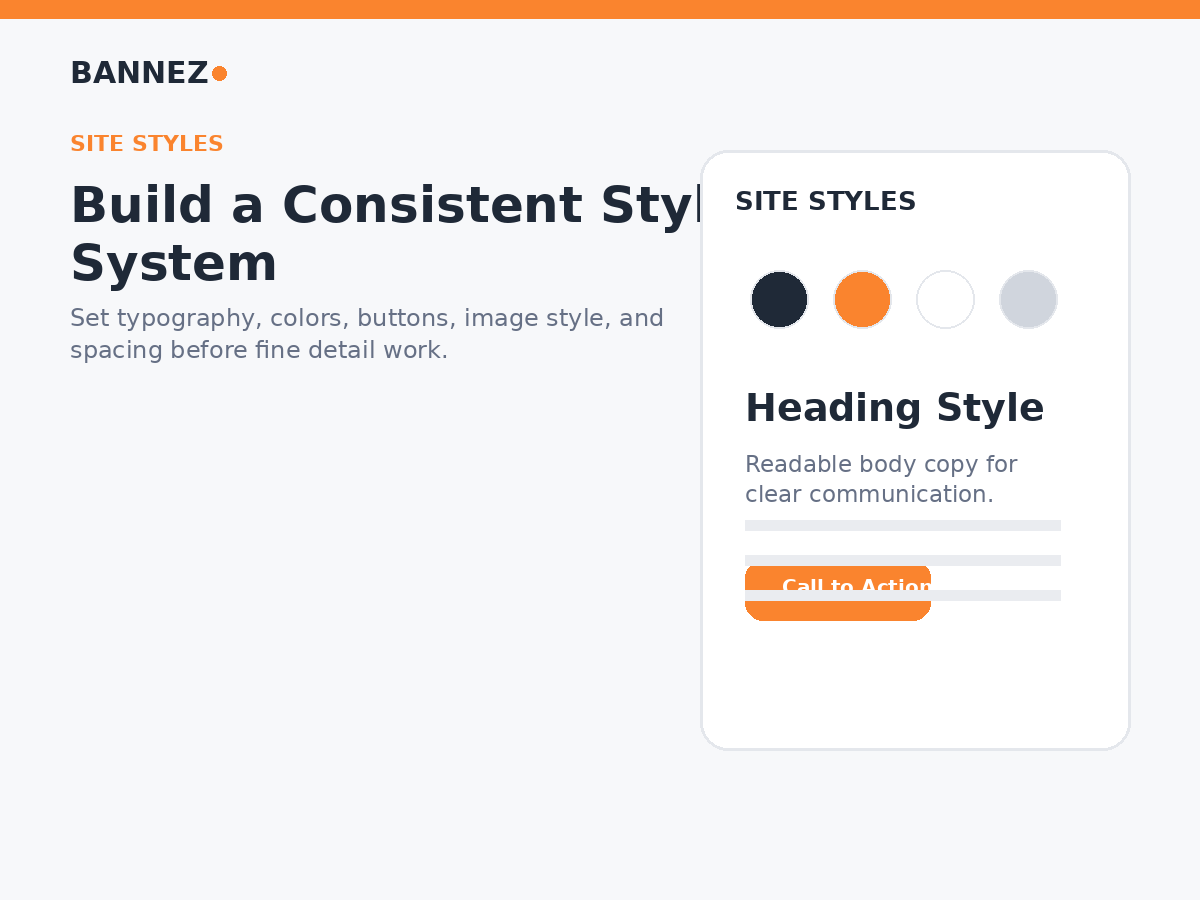
Site-wide styling is more efficient than manually formatting similar elements on every page. Set typography, colors, buttons, and spacing before making page-specific changes. Squarespace’s official section styling guide explains current section-level options.
Keep consistency in mind
- Use the same heading hierarchy
- Use one clear primary button style
- Limit the number of colors
- Keep body text easy to read
- Use repeatable spacing
3. Improve Typography and Color
Typography should make headings easy to scan and paragraphs comfortable to read. Use color to guide attention rather than decorating every section differently. Save the strongest accent for important actions such as contact, booking, buying, or requesting a quote.
4. Customize Page Sections
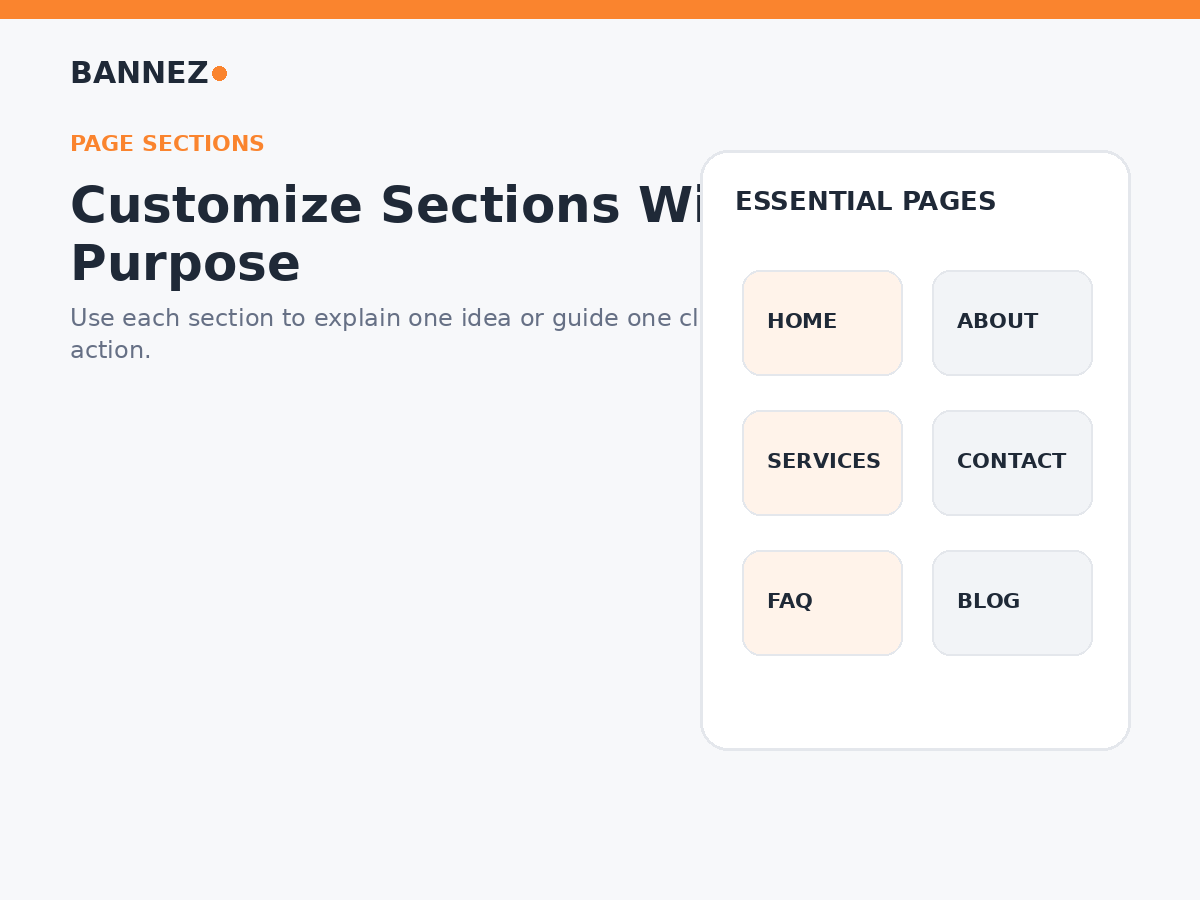
Squarespace page sections organize content into clear visual groups. The official page sections documentation explains how sections are added and managed.
Give every section one main purpose
- Introduce a service
- Explain a benefit
- Show portfolio work
- Present customer proof
- Answer a question
- Ask for one action
5. Use Content Blocks Carefully
Blocks can add text, images, buttons, forms, galleries, and other elements. Squarespace documents the system in its content blocks guide. Start with the message you need to communicate, then choose the block that supports it.
6. Create Reusable Patterns
If several pages use the same call-to-action, testimonial, process, or contact structure, keep the pattern consistent. Squarespace also provides options for saving and reusing page sections.
7. Customize Header and Navigation
Navigation checklist
- Use familiar page labels
- Keep important pages visible
- Make Contact or Booking easy to reach
- Check the menu on mobile
- Move secondary links to the footer
8. Improve Buttons and Calls to Action
Use clear labels such as “Book a Consultation,” “View Services,” “Request a Quote,” or “Contact Us.” Create a primary style for the main action and a secondary style for lower-priority actions.
9. Improve Images
Review each image for
- Relevance to the page
- Good desktop and mobile crop
- Reasonable file size
- Useful alt text when needed
- Consistent visual style
10. Customize Service Pages
Use a repeatable structure for similar services so customers can compare information easily. Include a clear headline, what is included, process, proof, FAQs, and a next step.
If you want professional help changing layout, branding, pages, or responsive design, explore our Squarespace website customization service.
11. Review Mobile Customization
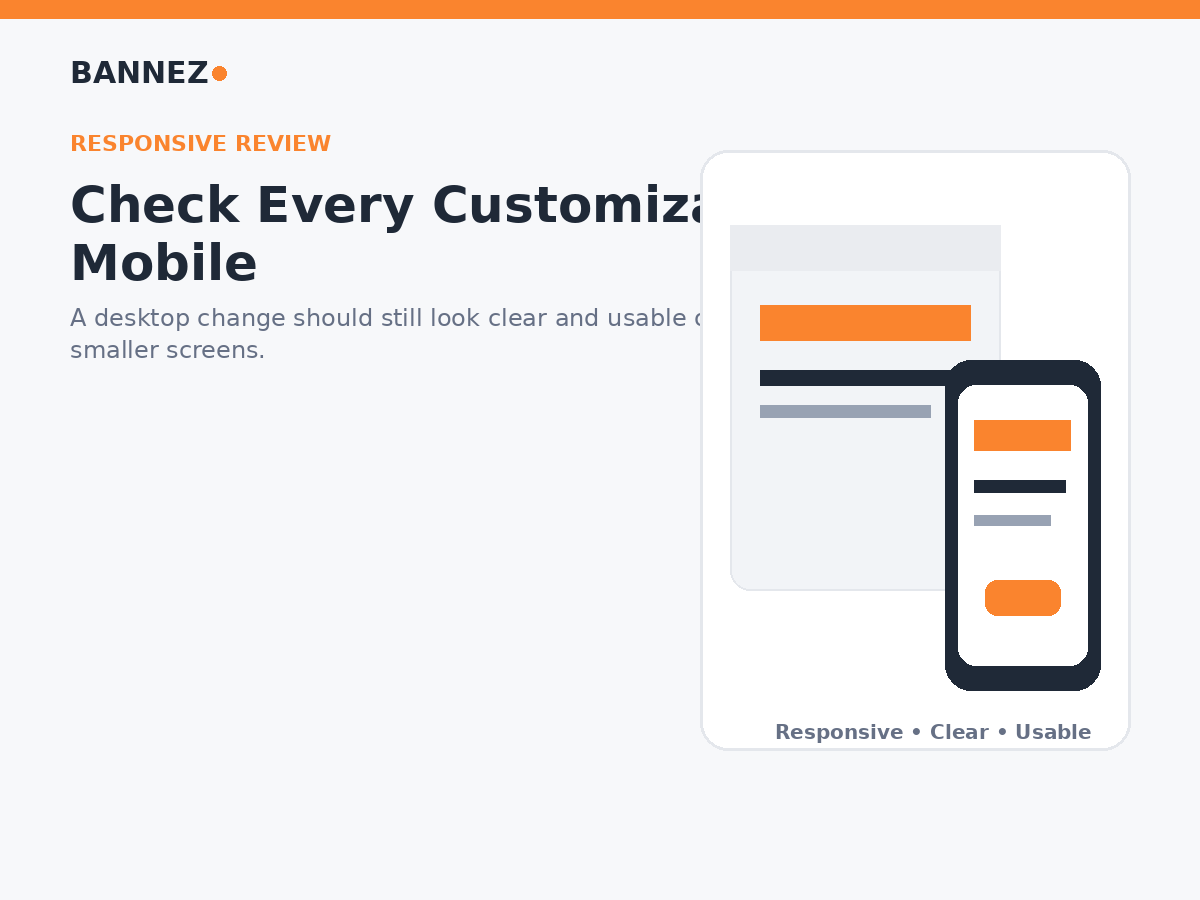
Squarespace uses responsive design, but custom content still needs review on smaller screens. See the official responsive design documentation.
Check these mobile details
- Long headings
- Image crops
- Button spacing
- Navigation
- Stacked columns
- Forms and footer links
12. Keep SEO in Mind
Use one clear page topic, logical H2 and H3 headings, descriptive URLs, useful internal links, and accurate image alt text. Squarespace page settings include URL and SEO-description controls; review the official page settings guide.
13. Avoid Unnecessary Custom Code
Custom CSS or code can be useful for a specific requirement, but built-in controls should handle normal styling first. Extra code can make future changes harder if it is not documented and tested.
14. Final Customization Checklist
- Fonts and colors are consistent
- Buttons have a clear hierarchy
- Section spacing feels consistent
- Images are relevant and properly cropped
- Navigation is simple
- Mobile pages are usable
- Forms and links work
- SEO titles and descriptions are reviewed
- No demo content remains
Frequently Asked Questions
Can I customize Squarespace without code?
Yes. Many professional customizations can be completed with built-in site styles, sections, blocks, layout controls, and page settings.
Should every page have a different design?
No. Repeating strong patterns creates consistency and makes the site easier to use.
Does custom CSS always improve a Squarespace website?
No. Use custom CSS only when it solves a real requirement that built-in tools cannot handle well.
Conclusion
Effective Squarespace customization starts with a simple brand system and site-wide styles. Then improve sections, blocks, navigation, calls to action, images, and service pages while keeping the experience consistent.
Review every customization on mobile, keep SEO structure intact, and avoid adding complexity without a clear benefit. A professional Squarespace design should feel intentional, easy to understand, and easy to maintain.
