
How to Improve a Slow Wix Website
A slow Wix website is not always caused by one large problem. Performance usually depends on the complete page: what loads first, how much media is used, which animations are active, how many third-party tools run, and how well the mobile experience is organized.
Wix manages important platform-level performance features, but the choices you make inside the editor still matter. This guide explains practical ways to improve a slow Wix website without assuming that every performance issue has the same cause.
1. Measure Before You Start Removing Things
Do not optimize based only on how fast the site feels on your own computer. Connection speed, device performance, location, browser cache, and page content can change the experience.
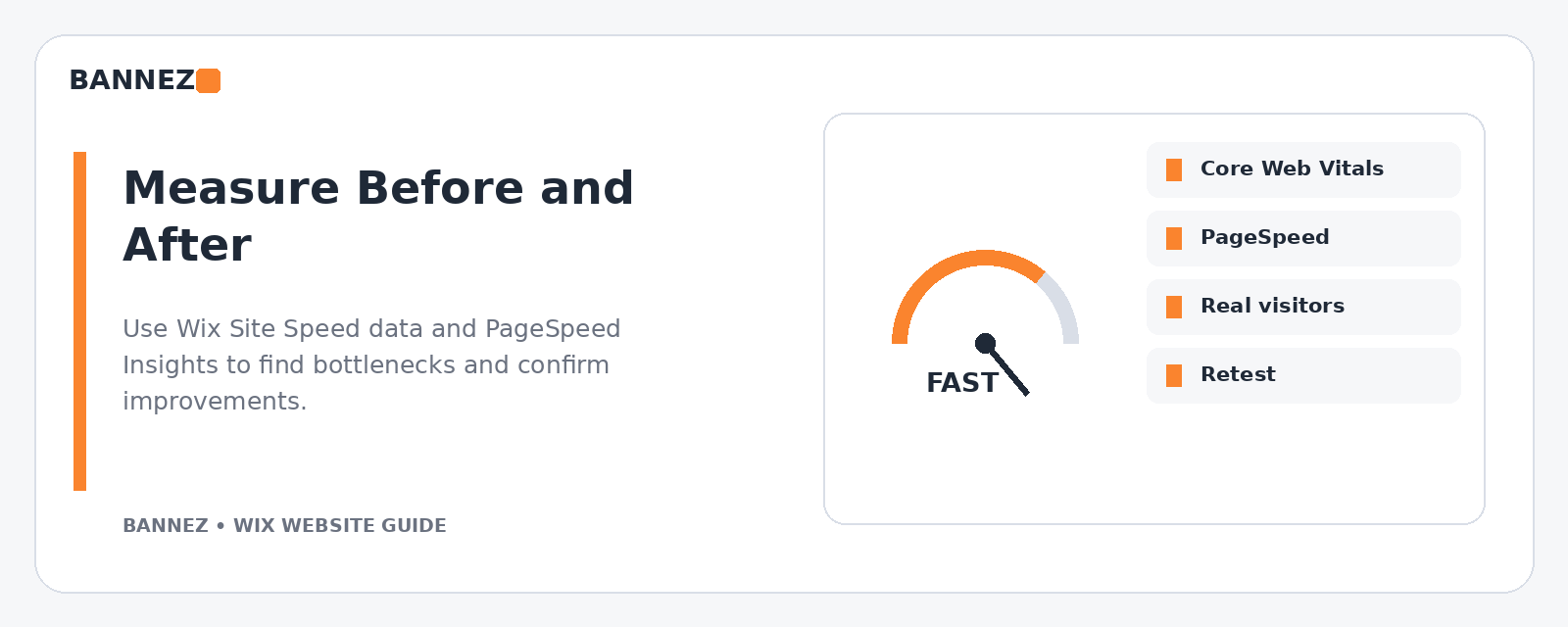
Use Wix’s site performance tools and an independent lab test such as PageSpeed Insights to identify patterns. Wix explains PageSpeed Insights and how its reports should be interpreted in its official PageSpeed Insights guide.
Record a baseline
- Test the homepage.
- Test an important service or product page.
- Test mobile and desktop separately.
- Record Core Web Vitals and main recommendations.
- Retest after meaningful changes.
2. Simplify the Content Above the Fold
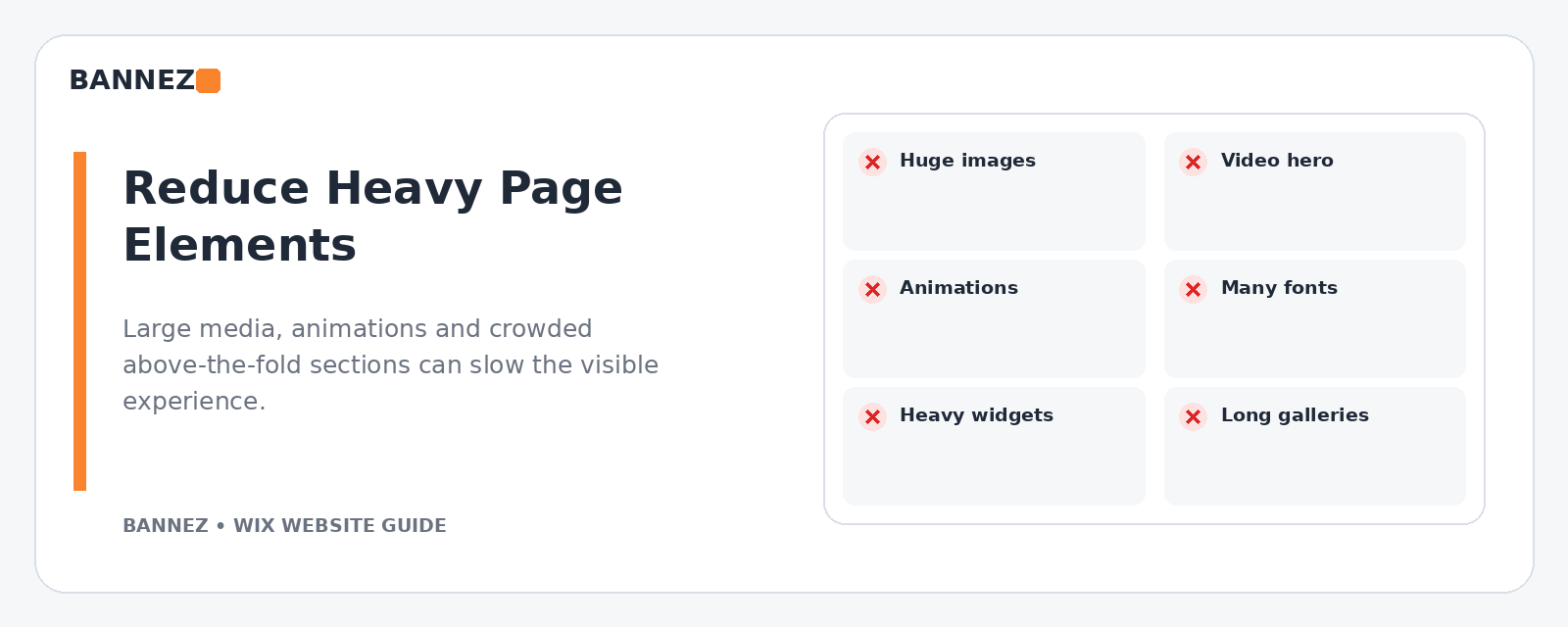
The first screen is especially important because it is what the browser needs to display quickly. A background video, large gallery, multiple animations, and several widgets all competing at the top of the page can make the opening experience heavier.
Wix recommends keeping above-the-fold content simple and relevant in its official site performance best practices.
A lighter hero section may use
- A clear headline
- Short supporting text
- One main call to action
- One optimized image or simple visual
3. Review Large Images
Wix performs image optimization as part of its platform, but image choice still matters. Do not upload or display unnecessarily complicated media simply because it is available.
Practical image improvements
- Use the right image for the actual display area.
- Crop unused space before upload where useful.
- Avoid repeating large decorative images across the page.
- Use consistent dimensions for related images.
- Remove images that add no information.
Wix explains several platform-level loading improvements, including media delivery, in its loading-time documentation.
4. Be Careful With Background Video
Video can communicate quickly, but it is heavier than a static image. If the main value of a page is explained by text and a clear image, a large autoplaying background video may not be necessary.
Ask before keeping a video
- Does it explain something the page cannot explain otherwise?
- Is it important above the fold?
- Does the mobile experience really need it?
- Can a lighter image provide the same message?
5. Reduce Unnecessary Galleries and Repeaters
Large galleries and repeaters can create more content for the page to render. This is especially noticeable when many items appear on mobile.
Wix’s performance guidance specifically recommends reducing the number of items in galleries and repeaters where possible, particularly for mobile layouts.
6. Review Animations
Animations can support visual hierarchy, but many simultaneous effects can add unnecessary work and make the page feel less focused.
Keep animations when they
- Guide attention to something important
- Improve understanding
- Do not delay access to the main content
Remove or simplify effects that exist only because they were available in the editor.
7. Audit Third-Party Code and Integrations
Analytics, chat tools, advertising scripts, social widgets, external forms, tracking pixels, and marketing integrations can add network requests and processing.
Wix recommends reviewing third-party code as part of a performance-focused design. Keep tools that serve a real business need and remove old or duplicate integrations.
Third-party audit checklist
- Is the tool still used?
- Is another tool already doing the same job?
- Does it need to load on every page?
- Is there a lighter implementation?
- Can it load later without hurting the customer journey?
8. Remove Unused Apps and Widgets
Over time, a Wix website may collect apps that were tested and forgotten. Review installed features periodically and remove tools that no longer support the website.
Do not remove a business-critical app only because a speed tool mentions scripts. First understand what the app does and whether the customer journey depends on it.
9. Improve the Mobile Layout Separately
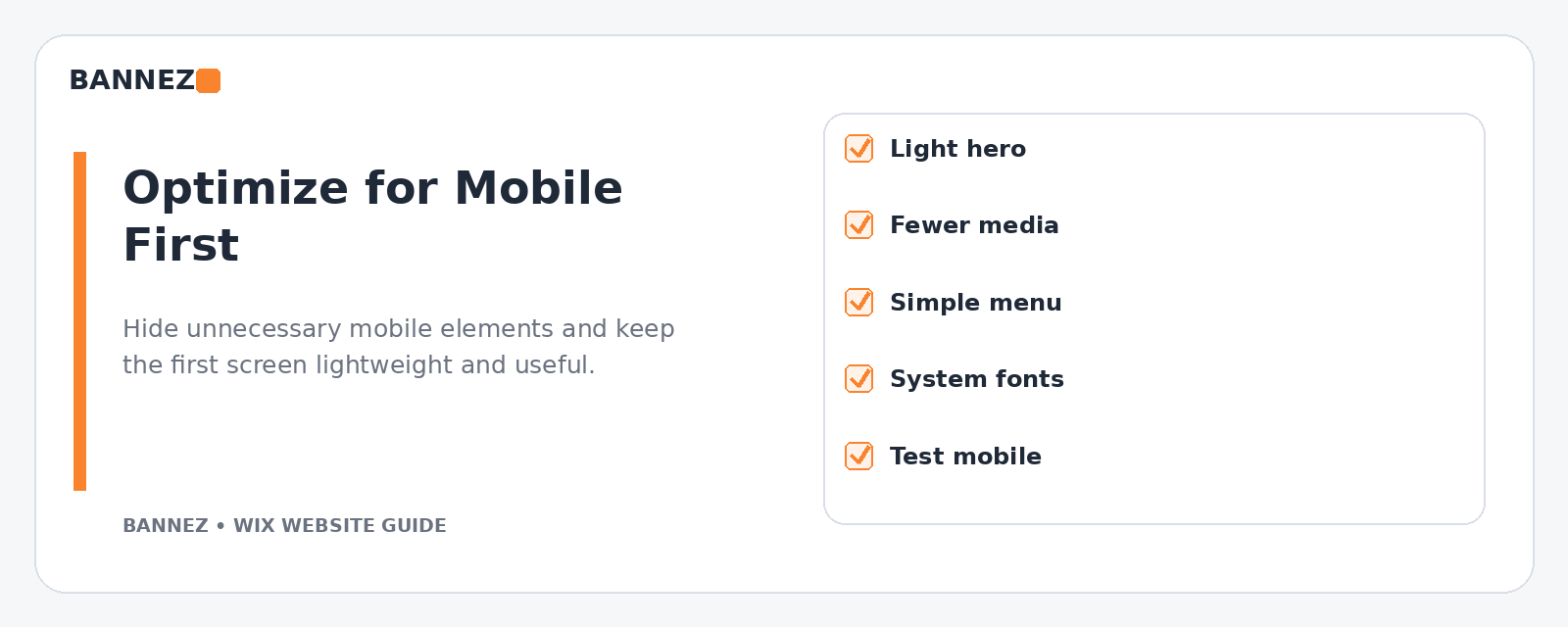
A mobile page should not simply contain every desktop element in a smaller space. Prioritize the information people need while they are on a phone.
Wix Editor provides a mobile editing workflow described in its official mobile version guide.
Mobile performance review
- Reduce decorative sections that add little value.
- Check long image galleries.
- Review popups and sticky tools.
- Keep the header simple.
- Prioritize primary service and contact information.
- Check that buttons remain easy to use.
10. Check Fonts and Visual Complexity
A page with many font families, weights, effects, shadows, and decorative treatments can be harder to maintain and may add unnecessary resources.
Use a simple typography system. One or two font families with a limited set of weights are usually enough for a business website.
11. Use Page Caching Where Wix Supports It
Wix uses caching to help pages load efficiently and provides settings for eligible pages. Its official page caching guide explains how caching works and when settings may be available.
Do not force caching behavior without understanding whether a page contains dynamic or personalized content.
12. Reduce Page Length When Sections Are Repetitive
A long page is not automatically slow, but repeated large sections, media, galleries, and widgets can add weight. If several sections say almost the same thing, consolidate them.
Move detailed content to a dedicated service page when it improves clarity. This can also strengthen internal linking and make the homepage easier to scan.
13. Check the Site After Every Major Design Change
Performance can change when you add a new app, video, gallery, tracking script, or complex section. Make performance review part of the design workflow instead of waiting until the site feels slow.
14. Understand Core Web Vitals in Context
Core Web Vitals measure important parts of the user experience, including loading, responsiveness, and visual stability. Wix provides a Site Speed dashboard with performance information and explains it in its official Site Speed dashboard guide.
Do not optimize one score in isolation. A website still needs to be useful, accessible, accurate, and able to perform its business functions.
15. Do Not Keep Rebuilding the Same Page
Repeatedly changing the template, moving sections, or adding more optimization apps without identifying the cause can waste time. Make one meaningful change, measure again, and keep a record of what improved or worsened.
Wix Speed Improvement Priority Table
| Priority | Review | Typical action |
|---|---|---|
| High | Heavy above-the-fold media | Simplify hero, reduce video or complex galleries |
| High | Third-party scripts | Remove unused or duplicate tools |
| High | Mobile-heavy layouts | Reduce unnecessary mobile content |
| Medium | Animations | Keep only purposeful effects |
| Medium | Repeated page sections | Consolidate and improve internal links |
| Ongoing | Performance measurement | Retest after major changes |
Quick Wix Performance Checklist
- Homepage and key pages measured
- Hero section kept focused
- Large media reviewed
- Background video justified or removed
- Galleries and repeaters reduced where practical
- Animations reviewed
- Third-party code audited
- Unused apps removed
- Mobile layout simplified
- Caching settings reviewed where relevant
- Core Web Vitals monitored
- Pages retested after changes
When a Redesign Can Help
If performance problems come from a page structure filled with old sections, unnecessary widgets, inconsistent mobile layouts, or years of added design features, a focused redesign may be easier than continuing to patch the existing layout.
If you need help rebuilding or simplifying the website, you can explore our Wix Website Design, Redesign & E-commerce Development service.
Frequently Asked Questions
Does Wix automatically optimize images?
Wix includes platform-level image optimization and delivery features. You should still choose appropriate images and avoid unnecessary media because page design decisions affect what has to load.
Should I remove every animation from a slow Wix site?
No. Review animations based on purpose and performance. Keep useful effects and remove excessive or decorative ones that add little value.
Will changing the Wix template automatically fix speed?
Not necessarily. The main causes may be media, page structure, third-party tools, apps, or content choices. Measure first and identify the heavy parts of the customer journey.
Should I trust one PageSpeed score?
Use lab tests as diagnostic tools and compare them with real user performance where available. Look for repeated patterns rather than reacting to one test run.
Conclusion
To improve a slow Wix website, start with evidence. Measure key pages, simplify above-the-fold content, review large media, control animations, audit third-party tools, reduce unnecessary mobile content, and retest after each meaningful change.
Performance optimization works best as an ongoing design habit. When every new image, app, section, and script has a clear reason to exist, the website becomes easier to use and easier to maintain.
