
How to Speed Up a Slow WordPress Website
How to Speed Up a Slow WordPress Website
A slow WordPress website rarely has only one cause. Hosting, images, plugins, themes, database queries, third-party scripts, fonts, caching, and traffic can all affect speed. Installing several optimization plugins without measuring the problem can add complexity without fixing the real bottleneck.
This guide provides a safe process to diagnose and speed up a slow WordPress website.
1. Measure Performance Before Making Changes
Test several important pages with Google PageSpeed Insights, browser developer tools, hosting monitoring, and real-user data when available.
Record a Baseline
- Page URL and device
- Server response time
- Largest images and visible content
- JavaScript and CSS weight
- Third-party requests
- Core Web Vitals data
- Browser and server errors
2. Create a Backup and Use Staging
Create a complete files-and-database backup before changing caching, plugins, themes, databases, PHP, or server settings. Test major changes on staging because optimization can affect forms, accounts, carts, and personalized content.
3. Review Hosting and Server Resources
Slow server response may come from limited CPU, memory, storage, workers, database performance, or an overloaded shared environment. Ask the host to review real resource usage.
- Use a supported PHP version compatible with the site.
- Confirm adequate memory and worker capacity.
- Choose a data center near the main audience.
- Review server caching and object-cache options.
- Monitor uptime and slow database queries.
4. Optimize Images

- Resize images to suitable dimensions.
- Compress without unacceptable quality loss.
- Use modern formats where supported.
- Serve responsive image sizes.
- Lazy-load suitable off-screen media.
- Do not blindly lazy-load the main visible image.
- Set image dimensions to reduce layout movement.
5. Configure Caching Correctly
Caching reduces repeated work. The official WordPress caching guide covers browser, page, object, and server caching.
| Cache | Purpose |
|---|---|
| Page cache | Serves prepared HTML |
| Browser cache | Reuses suitable assets |
| Object cache | Reuses database results |
| CDN cache | Delivers cacheable files closer to visitors |
Avoid overlapping caching plugins and server rules. Exclude dynamic pages such as checkout and accounts where required.
6. Audit WordPress Plugins
The official WordPress performance guide recommends removing unnecessary plugins and measuring their effect.
- Delete inactive and unused plugins.
- Identify heavy queries and scripts.
- Remove overlapping features.
- Test alternatives on staging.
- Keep only plugins with clear value.
7. Review the Theme and Page Builder
Themes and builders may load frameworks, fonts, icons, sliders, and effects on every page. Disable unused features and measure before deciding whether a redesign is necessary.
8. Reduce Unnecessary JavaScript
Google’s Core Web Vitals guidance recommends avoiding unnecessary JavaScript and long main-thread tasks.
- Remove unused sliders, popups, trackers, and widgets.
- Delay non-critical scripts where appropriate.
- Do not defer or combine scripts blindly.
- Retest menus, forms, consent, analytics, and checkout.
9. Optimize Fonts and CSS
- Use fewer font families and weights.
- Load only needed character sets.
- Preload only genuinely critical assets.
- Remove unused styles safely.
- Avoid layout-changing animations.
- Keep above-the-fold CSS efficient.
10. Clean the Database Carefully
Revisions, expired transients, abandoned tables, and excessive autoloaded options can add work. Never delete database data without a current backup and clear knowledge of what owns it.
11. Use a CDN When Appropriate
A CDN can deliver static assets closer to visitors and add caching or security features. It cannot fix slow uncached processing, huge pages, or inefficient plugins by itself.
12. Understand Core Web Vitals
- LCP: how quickly main content appears
- INP: responsiveness to interactions
- CLS: visual stability
Use field data where available and improve the real visitor experience rather than chasing a perfect laboratory score.
13. Test Dynamic and Mobile Pages
Test search, forms, accounts, membership areas, carts, checkout, and personalized pages. Confirm that caching never exposes stale or private content.
WordPress Speed Optimization Checklist
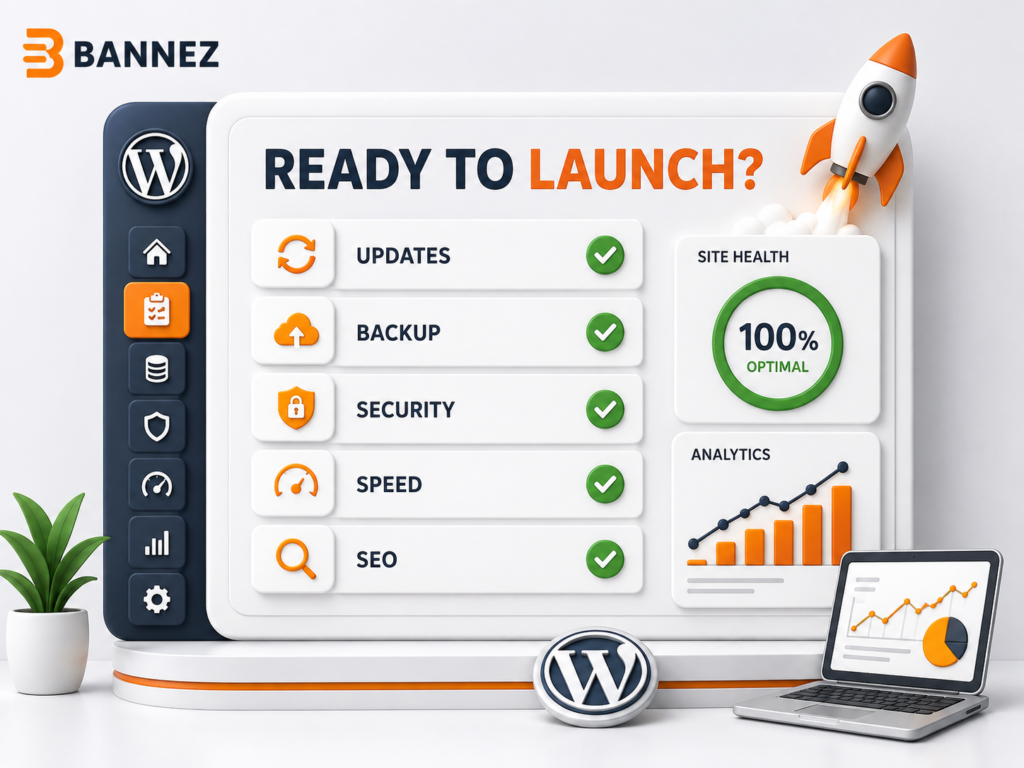
- ☐ Baseline recorded
- ☐ Backup and staging available
- ☐ Hosting resources reviewed
- ☐ Images resized and compressed
- ☐ Caching configured without overlap
- ☐ Unnecessary plugins removed
- ☐ Theme and builder assets reviewed
- ☐ Third-party scripts reduced
- ☐ Fonts and CSS optimized
- ☐ Database changes verified
- ☐ Dynamic pages handled correctly
- ☐ Mobile and real-user performance monitored
Common WordPress Speed Mistakes
- Installing several optimization plugins at once
- Testing only the homepage
- Using huge images resized with CSS
- Chasing scores without checking functions
- Caching checkout or accounts incorrectly
- Deleting database data without backup
- Ignoring slow hosting or external scripts
Frequently Asked Questions
Why did WordPress suddenly become slow?
Recent updates, traffic, hosting limits, scheduled jobs, external APIs, database growth, attacks, or cache changes may be responsible. Compare logs and recent changes.
Will a caching plugin fix every slow website?
No. Caching cannot fix every hosting, image, JavaScript, database, or third-party bottleneck.
Should I delete all revisions and transients?
Not blindly. Back up first, understand the data, and use a controlled maintenance process.
Conclusion
Speed up WordPress through a measured cycle: test, identify the bottleneck, make one controlled change, verify functions, and compare results. Start with hosting, images, caching, unnecessary plugins, scripts, fonts, and database health.
Continue monitoring after launch because content, software, traffic, and external services change over time.
