
Squarespace Website Setup Checklist for Beginners
Setting up your first Squarespace website becomes much easier when you follow a clear order. Beginners often lose time by changing colors, moving sections, and adding pages before deciding what the website actually needs.
This Squarespace website setup checklist gives you a practical sequence from planning to launch. You can use it for a small business website, portfolio, blog, service website, or simple online presence.
1. Define the Website Goal
Before you choose a layout, decide what success means for the website.
Write down these basics
- Who the website is for
- What you offer
- The main action visitors should take
- The most important information visitors need
2. Create the Main Page List
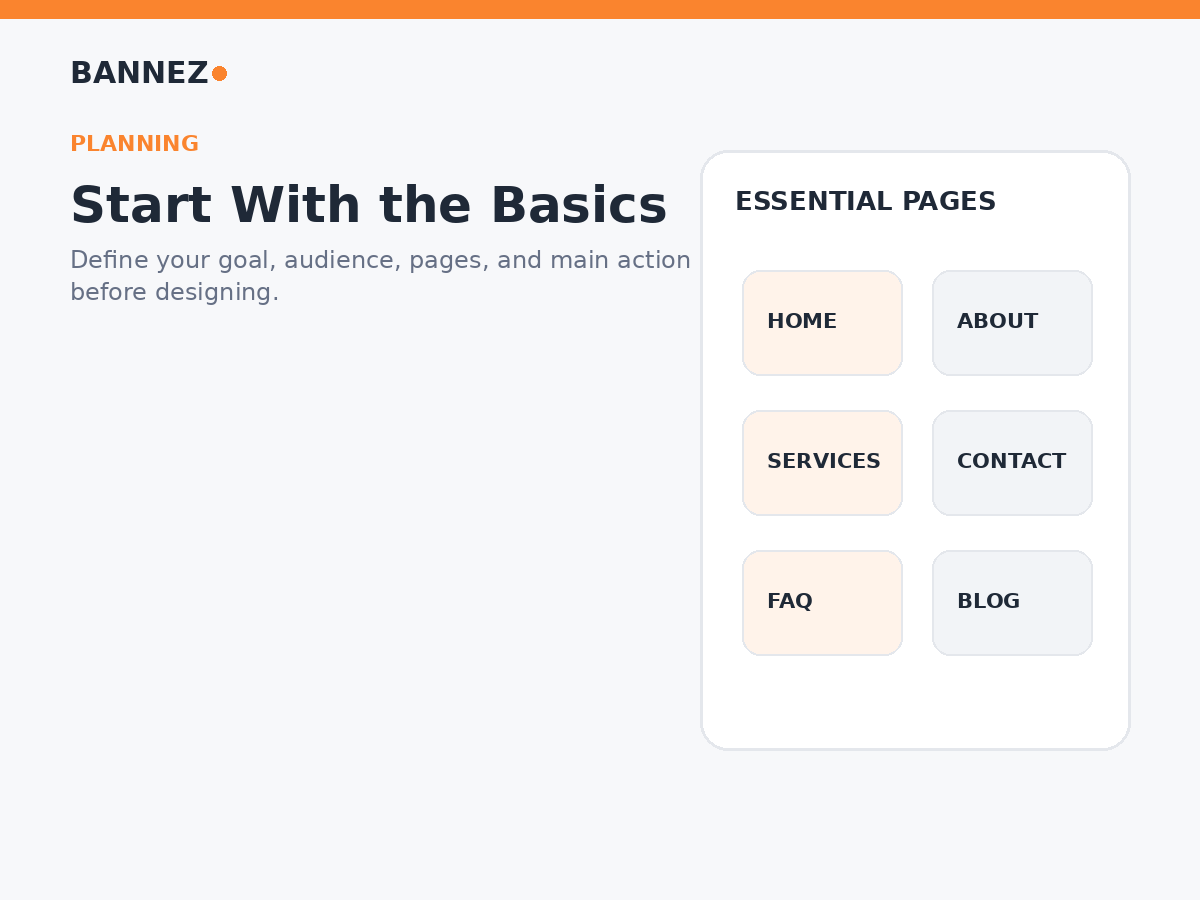
Most beginner websites do not need dozens of pages. Start with the pages required to explain the business clearly.
Common core pages
- Home
- About
- Services or Products
- Contact
- FAQ when customers ask repeated questions
- Blog or Resources when you plan to publish content
- Required policy pages
Squarespace’s official page and navigation guide explains how to add blank pages, pre-built layouts, and collection pages.
3. Choose a Starting Layout
Select a design based on the structure and content you need. Demo photography can make a layout look impressive, but the real test is whether it supports your pages, navigation, calls to action, and business features.
Check the layout for
- Simple navigation
- Readable text areas
- Useful homepage sections
- Good image placement
- Mobile-friendly structure
4. Set Your Site Styles Early
Set basic branding before building every page. This helps you avoid correcting fonts, colors, and button styles one page at a time later.
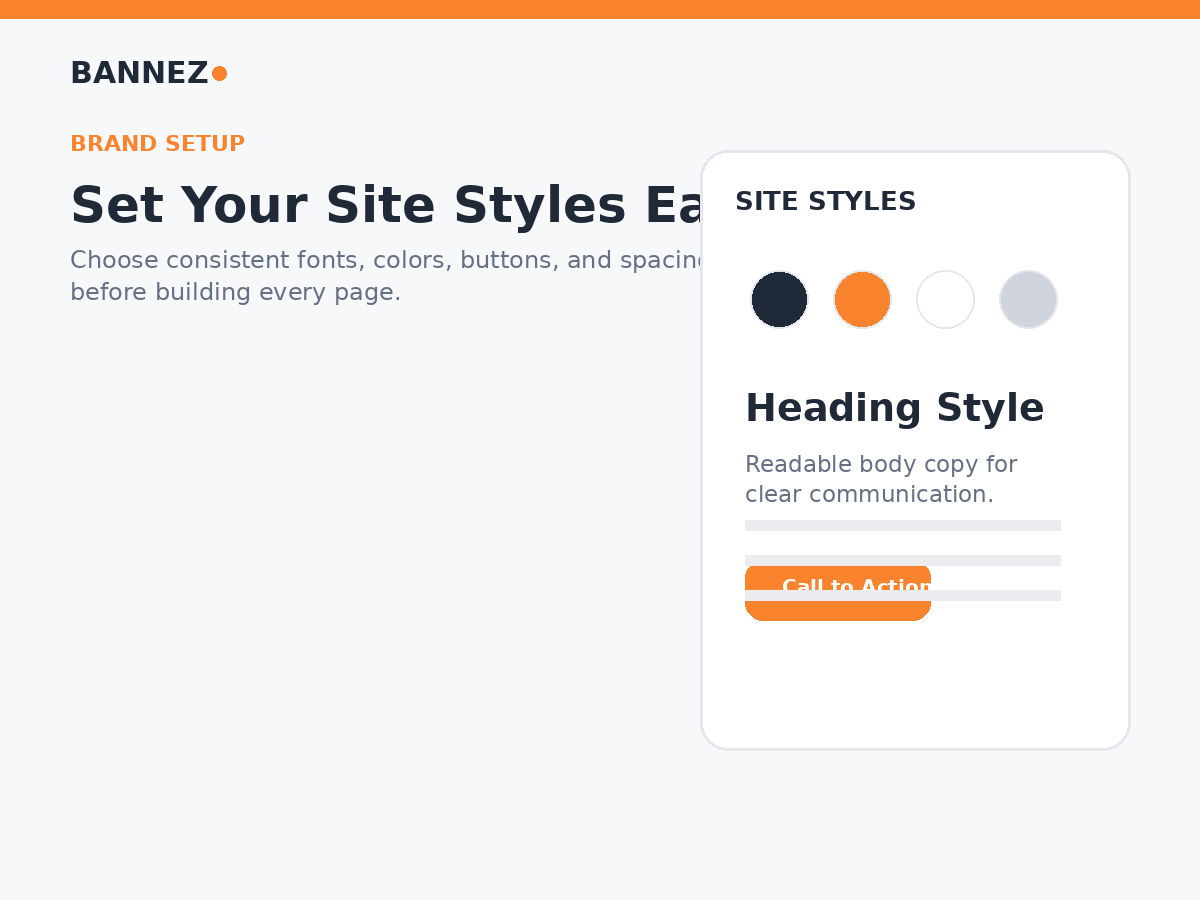
Set these design basics
- Primary brand color
- Secondary or accent color
- Heading font
- Body font
- Button style
- Section spacing
- Image style
Keep the system simple. A limited set of styles is easier for beginners to maintain and usually creates a more professional result.
5. Add Your Logo and Site Identity
Upload a clear logo and make sure it remains readable in the header. Also review the site title, browser icon, and any business name settings that appear across the website.
Logo checklist
- Use a sharp image file
- Check light and dark backgrounds
- Avoid making the logo too large
- Review it on mobile
6. Build the Homepage First
The homepage helps set the design direction for the rest of the website.
A simple homepage structure
- Clear headline
- Short supporting message
- Main call to action
- Services or important offers
- Trust information
- Simple process or benefits
- Final call to action
Do not add sections only because they are available. Use sections that help visitors understand the website.
7. Add Clear Service or Product Information
Each important offer should explain what it is, who it helps, what is included, and how someone can take the next step.
If you want professional help with setup or customization, you can explore our Create or Customize a Responsive Squarespace Website service.
8. Build the About Page
Use the About page to support trust. Explain who you are, what the business does, who you serve, and any relevant experience or working approach.
Avoid vague claims and unnecessary personal history. Keep the page useful to a potential customer.
9. Configure the Contact Page
Make it easy for visitors to contact you. Include only the methods you actually monitor.
Possible contact options
- Contact form
- Email address
- Phone number
- Booking link
- Physical address
- Opening hours
- Service area
10. Organize Navigation
Use familiar page names and keep the main menu simple. Put less important links in the footer where appropriate.
Squarespace lets you organize pages through the Pages panel and navigation sections. Review the current options in the official Pages panel guide.
11. Review Every Page for Mobile
Squarespace uses responsive design, but real content can still create spacing, crop, and readability issues.
Check on a phone
- Menu
- Headings
- Buttons
- Images
- Forms
- Long text sections
- Footer
The official Squarespace responsive design guide explains how content adjusts across screen sizes.
12. Add Basic SEO Settings
Keep SEO simple at the beginning. Give each page one clear topic and make the page useful before worrying about advanced tactics.
Beginner SEO checklist
- Clear page title
- Readable URL slug
- One main H1
- Logical H2 and H3 headings
- Helpful meta description
- Natural keywords
- Internal links
- Descriptive image alt text
Squarespace page settings include URL, featured image, and SEO description controls. See its official page settings documentation.
13. Connect Your Domain
Before launch, confirm the correct domain will point to the website. If you are moving from another website, plan the domain change carefully so important URLs and email services are not affected.
14. Add Required Business and Policy Information
Depending on your business and location, you may need privacy, terms, refund, shipping, cookie, accessibility, or other policy information. Use accurate policies that match how your business actually operates.
15. Test Forms, Buttons, and Links
Do not assume every action works because the page looks correct.
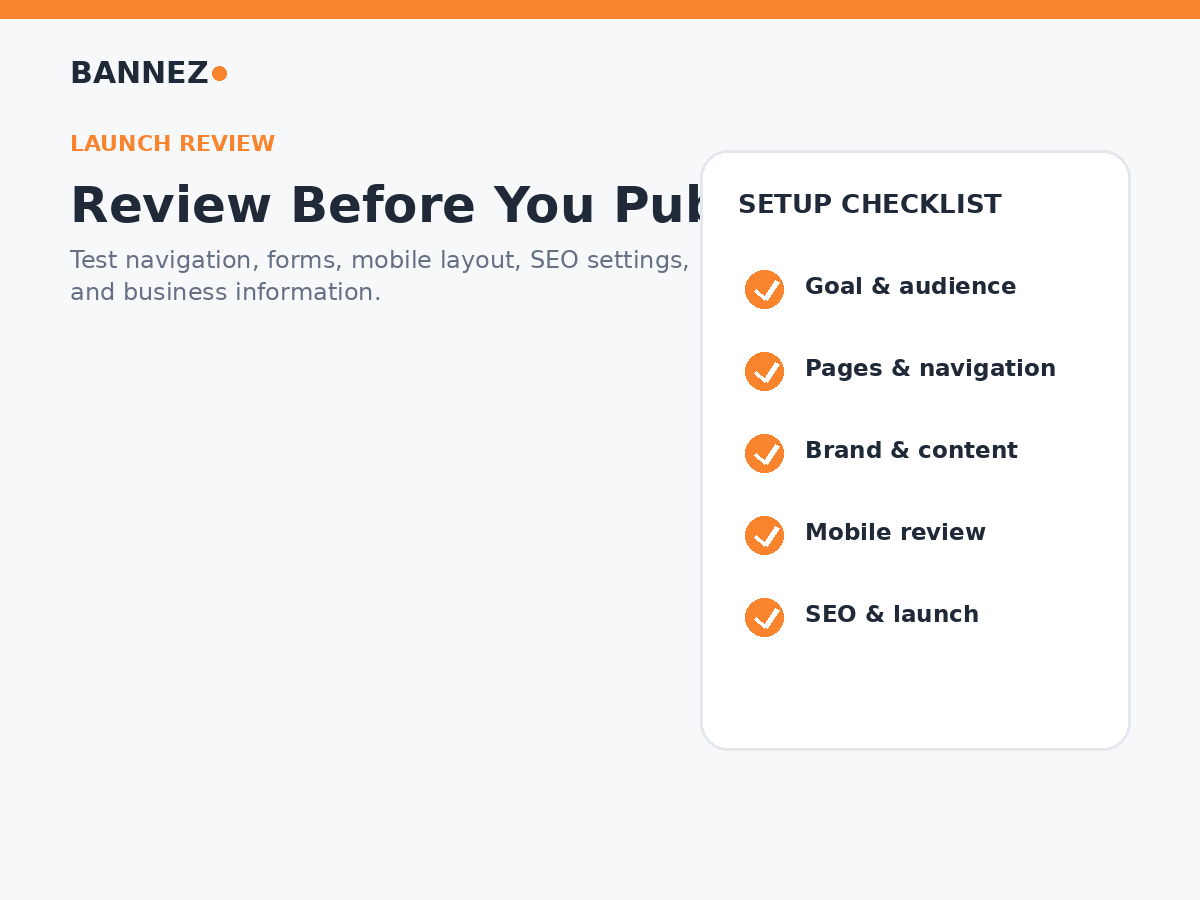
Test these items
- Main navigation
- Buttons
- Contact forms
- Email links
- Phone links
- Booking links
- Social links
- Checkout if used
16. Remove Demo Content
Search the site for placeholder text, sample images, temporary page names, test products, and hidden demo sections. Beginners often publish a site with one small piece of template content still visible.
17. Preview the Full Website
Review the website like a first-time visitor. Start on the homepage and try to complete the main action without using the editor.
Ask yourself
- Can I understand the offer quickly?
- Can I find the main pages?
- Is the next step clear?
- Does the website feel consistent?
- Does anything look unfinished?
Beginner Squarespace Setup Checklist
| Setup area | Status to confirm |
|---|---|
| Goal | Audience and main action defined |
| Pages | Core pages created and organized |
| Brand | Colors, fonts, logo, buttons consistent |
| Content | Business information complete |
| Mobile | Important pages checked on a phone |
| SEO | Titles, slugs, headings, descriptions reviewed |
| Testing | Forms, links, buttons, and navigation work |
| Launch | Domain and final preview ready |
Frequently Asked Questions
What should I set up first in Squarespace?
Start with the website goal and page structure. Design decisions are easier when you already know what content and actions the site must support.
Should I finish all content before designing?
You do not need every final sentence first, but you should know the main message and approximate content for each page before heavily customizing the layout.
Can I change my Squarespace site after launch?
Yes. Websites should continue to be updated. Keep business information current and improve pages based on real visitor needs.
Do beginners need custom CSS?
Usually not. Start with built-in design tools. Add custom code only when a specific requirement cannot be achieved safely with standard options.
Conclusion
A beginner-friendly Squarespace setup is mainly about doing things in the right order. Define the goal, plan the pages, set a simple brand system, build useful content, review mobile layouts, complete basic SEO, and test every important action before publishing.
Once the website is live, continue improving it based on customer questions, analytics, search performance, and business changes. A simple website that stays accurate and easy to use is more valuable than a complicated site that is difficult to maintain.
