
Wix Website Design Checklist for Small Businesses
A small business website has to do several jobs at the same time. It should explain what your business offers, make visitors feel confident, work properly on mobile devices, answer common questions, and give people a clear way to contact you or take the next step.
Wix gives small businesses flexible design tools, but a good result still depends on planning. This Wix website design checklist helps you review the important parts before you publish or promote your site.
1. Define the Main Goal of Your Wix Website
Start with one clear business goal. A website becomes confusing when every section is trying to do something different.
Choose the primary action you want visitors to take
- Call your business
- Request a quote
- Book an appointment
- Send an enquiry
- Visit your location
- Buy a product or service
Your primary call to action should appear naturally in important areas such as the header, hero section, service pages, and final section of the page.
2. Identify Your Target Customer
Write for the customer you actually want to reach. A local home-service company, consultant, restaurant, clinic, online coach, and B2B company all need different information.
Before designing, list the questions customers usually ask. These questions should guide your page structure and content.
3. Plan the Essential Website Pages
Most small business websites need a simple page structure rather than dozens of pages. A useful starting point is:
- Home: explain the business and guide visitors to the next step.
- Services or Products: explain what you offer clearly.
- About: give useful context about the business and your approach.
- Contact: provide reliable contact methods.
- FAQ: answer recurring questions where useful.
- Privacy and other required policies: add the information appropriate for your business and location.
Wix explains how to add, rename, duplicate, hide, and organize pages through its official Managing Your Site Pages guide.
4. Keep the Navigation Simple
A visitor should not have to guess where information is located. Use short, familiar menu labels such as Home, Services, About, Contact, and FAQ. If you have many services, organize them under a logical structure instead of putting every page in the main menu.
Wix describes the site menu as an essential part of a website and provides instructions for adding and managing menus in its official site menu guide.
5. Create a Clear Homepage
Your first screen should answer three questions
- What does the business do?
- Who is it for?
- What should the visitor do next?
Avoid starting with a vague slogan that looks attractive but does not explain the offer. Use a clear headline, a short supporting sentence, and one main call to action.
6. Use Consistent Business Branding
Choose a small set of colors, one or two readable font families, consistent button styles, and a repeatable image style. Consistency makes a small business website feel more complete and easier to understand.
Simple branding checklist
- Logo is clear and not oversized.
- Heading and body fonts are easy to read.
- Buttons use consistent colors and wording.
- Image quality and style are consistent.
- Spacing feels similar across pages.
7. Build Trust With Real Business Information
Trust is usually built through many small details. Make sure your business name, contact details, service information, location where relevant, and policies are accurate and consistent.
Use genuine testimonials, reviews, certifications, project examples, or client results only when you can represent them accurately. Avoid fake counters, fake scarcity, or generic trust badges that do not explain anything meaningful.
8. Make Service Pages Useful
Do not create a service page that contains only a title and one paragraph. A strong page should help a potential customer understand:
- What the service is
- Who it is suitable for
- What problem it helps solve
- What is included
- How the process works
- What the customer should do next
9. Check the Mobile Version Carefully
Wix automatically creates a mobile-friendly version for sites built with the Wix Editor, but you should still review and adjust it. Wix recommends keeping the mobile-friendly view enabled and using the mobile editor to organize content for smaller screens in its mobile site documentation.
Review these mobile elements
- Header and menu
- Headline size
- Buttons and tap targets
- Forms
- Images and galleries
- Spacing between sections
- Footer links
10. Keep Forms Short and Clear
Ask only for the information you genuinely need. A simple enquiry form may only require a name, email or phone number, and message. If a quote requires more information, explain why each field is useful.
After submitting the form, the visitor should receive a clear confirmation so they know the request was sent successfully.
11. Add Clear Contact Information
Do not make visitors search for a way to reach you. Put important contact information on the Contact page and, where appropriate, in the header or footer.
If your business has fixed operating hours, a physical address, or specific service areas, display them accurately.
12. Review Website Accessibility Basics
Use readable contrast, descriptive link text, proper heading order, useful image alt text, and clear form labels. Accessibility improvements can also make the website easier to use for a wider range of visitors.
13. Complete the Basic Wix SEO Setup
Your design should also support search visibility. Write descriptive page titles, useful meta descriptions, clear headings, natural page copy, and descriptive image alt text.
Wix provides an official SEO Setup Checklist that uses business information and keywords to guide initial optimization and Google connection steps.
Small business SEO checklist
- Each important page has a unique topic.
- Page titles describe the page clearly.
- Headings are organized logically.
- Local business information is accurate where relevant.
- Images have useful alt text.
- Internal links connect related pages naturally.
14. Avoid Making the Homepage Too Heavy
Large videos, too many animations, oversized image galleries, and unnecessary widgets can make the first page feel slow or distracting. Wix recommends lightweight, relevant content above the fold and limiting heavy elements in its site performance best practices.
15. Test Every Important Action
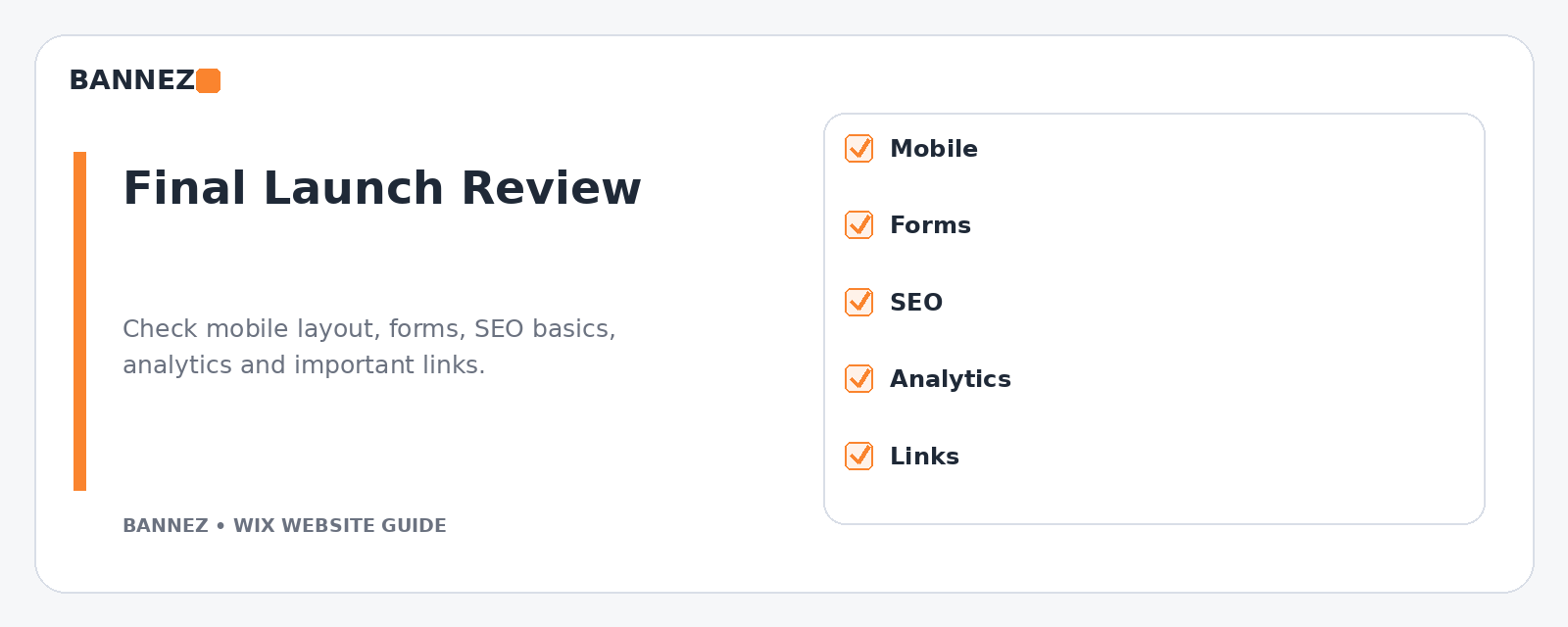
Before launch, click every major button and menu link. Submit every form. Test phone and email links. If your business uses bookings, ecommerce, or other Wix business tools, test the full customer journey.
Final Wix Website Design Checklist
- Business goal and main CTA are clear
- Target customer is defined
- Essential pages are complete
- Navigation is simple
- Homepage explains the business quickly
- Branding is consistent
- Service pages answer customer questions
- Contact information is accurate
- Mobile layout is reviewed
- Forms work correctly
- Accessibility basics are checked
- SEO titles, descriptions, headings, and alt text are reviewed
- Heavy media and unnecessary elements are reduced
- All important links and actions are tested
Professional Wix Website Design Support
If you want your business website designed or redesigned with a clear structure, professional layout, responsive setup, and the Wix features your project requires, you can explore our Wix Website Design, Redesign & E-commerce Development service.
Frequently Asked Questions
How many pages does a small business Wix website need?
There is no fixed number. Many small businesses can start with a focused set of Home, Services, About, Contact, and necessary supporting pages. Add more pages when they answer a real customer or search need.
Should I use animations on a Wix business website?
Use them only when they support the experience. Too many animations can distract visitors and add unnecessary page weight, especially near the top of the page.
Do I need to redesign the mobile version separately?
Wix creates a mobile-friendly version, but you should review it in the mobile editor. Spacing, hidden elements, menus, images, and forms may need adjustments for smaller screens.
Can Wix handle SEO for a small business?
Wix provides SEO settings, an SEO Setup Checklist, page-level controls, and tools for connecting to Google. Good results still depend on useful content, clear site structure, relevant keywords, strong local information where applicable, and ongoing optimization.
Conclusion
A strong Wix website for a small business is not about adding the most design effects. It is about making the business easy to understand and easy to contact. Plan the pages before designing, keep navigation simple, build trust with accurate information, review mobile layouts carefully, complete the SEO basics, and test every important action before launch.
Use this checklist again whenever you add a new service, change your offer, or update your website. Regular small improvements can keep the site useful as the business grows.
