
WordPress Child Theme: What It Is and When You Need One
WordPress Child Theme: What It Is and When You Need One
A WordPress child theme is a theme that uses another theme—called the parent—as its foundation. It can keep selected styles, templates, and functions separate from the parent theme, making suitable customizations easier to maintain when the parent receives updates.
A child theme is useful, but it is not required for every website and it does not automatically make code safe. This guide explains how child themes work, when you need one, when you do not, and the mistakes to avoid.
What Is a WordPress Child Theme?
A child theme inherits design and functionality from an installed parent theme. The child can add or override selected files without containing a complete copy of the parent.
The official WordPress Theme Handbook describes child themes as extensions that let you modify a theme without editing its files directly.
Parent Theme vs Child Theme
| Parent Theme | Child Theme |
|---|---|
| Provides the main design, templates, and features | Inherits from the parent |
| Can work by itself | Needs its parent installed |
| Receives developer updates | Stores selected custom additions or overrides |
| Should not be directly edited for lasting changes | Can hold maintainable file-level customizations |
How a Child Theme Works
At minimum, a classic child theme normally has a stylesheet containing theme information and a reference to the parent’s template directory. It may also include a functions file and selected templates.
Styles
The child can add CSS while using the parent’s existing styles. The loading method depends on the theme, so follow current developer documentation instead of copying old snippets blindly.
Functions
A child theme’s functions.php is loaded in addition to the parent’s file; it does not simply replace it. Duplicate function names or poorly written code can still cause fatal errors.
Templates
When a suitable template exists in both themes, WordPress can use the child version. This makes overrides possible, but copied templates may need maintenance when the parent changes.
When You Need a WordPress Child Theme
- You must modify suitable theme template files.
- You need theme-related PHP functions kept separate from the parent.
- You have a meaningful amount of custom CSS tied to the theme.
- You want selected customizations version-controlled and documented.
- You need changes that should remain after parent-theme updates.
When You May Not Need a Child Theme
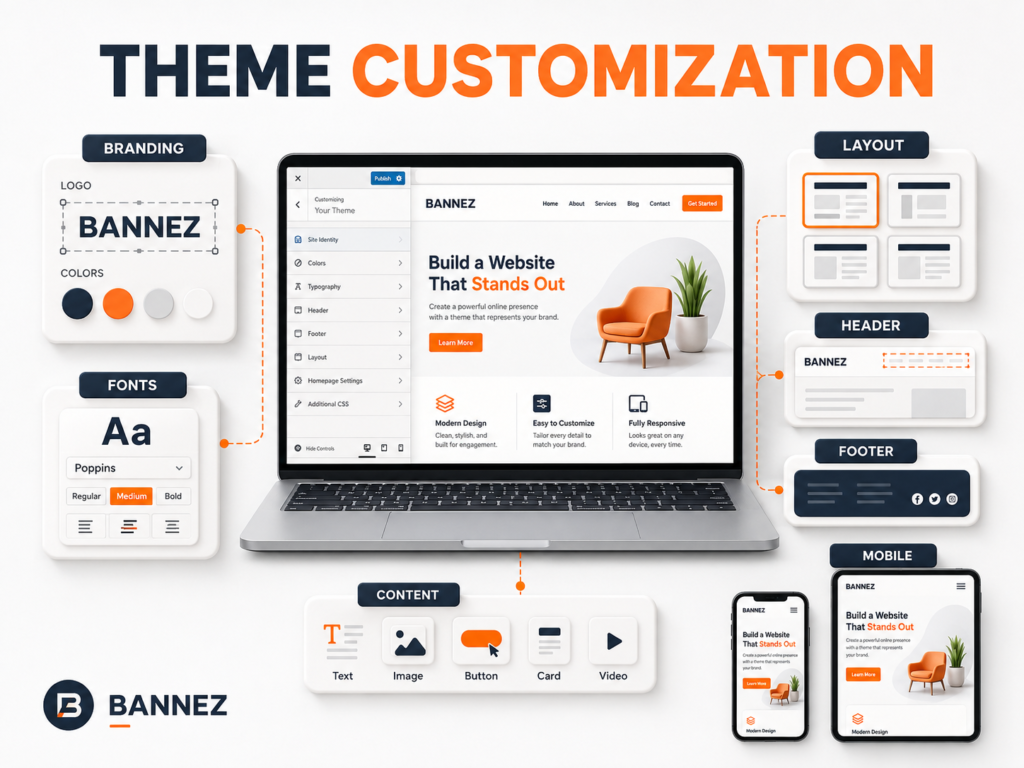
- You only change settings through the Site Editor or Customizer.
- You only edit normal page or post content.
- Your page builder safely stores layouts outside parent-theme files.
- You use a small amount of Additional CSS and do not need file access.
- The change belongs in a plugin rather than the theme.
For block themes, many style and template changes can be saved through the Site Editor. Review the official Site Editor documentation before creating a child theme unnecessarily.
Child Theme or Custom Plugin?
| Use a child theme for | Use a plugin for |
|---|---|
| Theme-specific presentation | Functionality that should survive a theme change |
| Selected template overrides | Custom post types and business logic |
| Theme-related styles | Integrations and reusable site functions |
If the feature must keep working after you switch themes, it usually should not depend only on the child theme.
Benefits of Using a Child Theme
- Parent-theme updates do not directly overwrite child files.
- Customizations are easier to identify and document.
- You can use the parent as a tested design foundation.
- Selected changes can be moved between staging and production more clearly.
- Version control is easier than editing through the dashboard.
Important Limitations
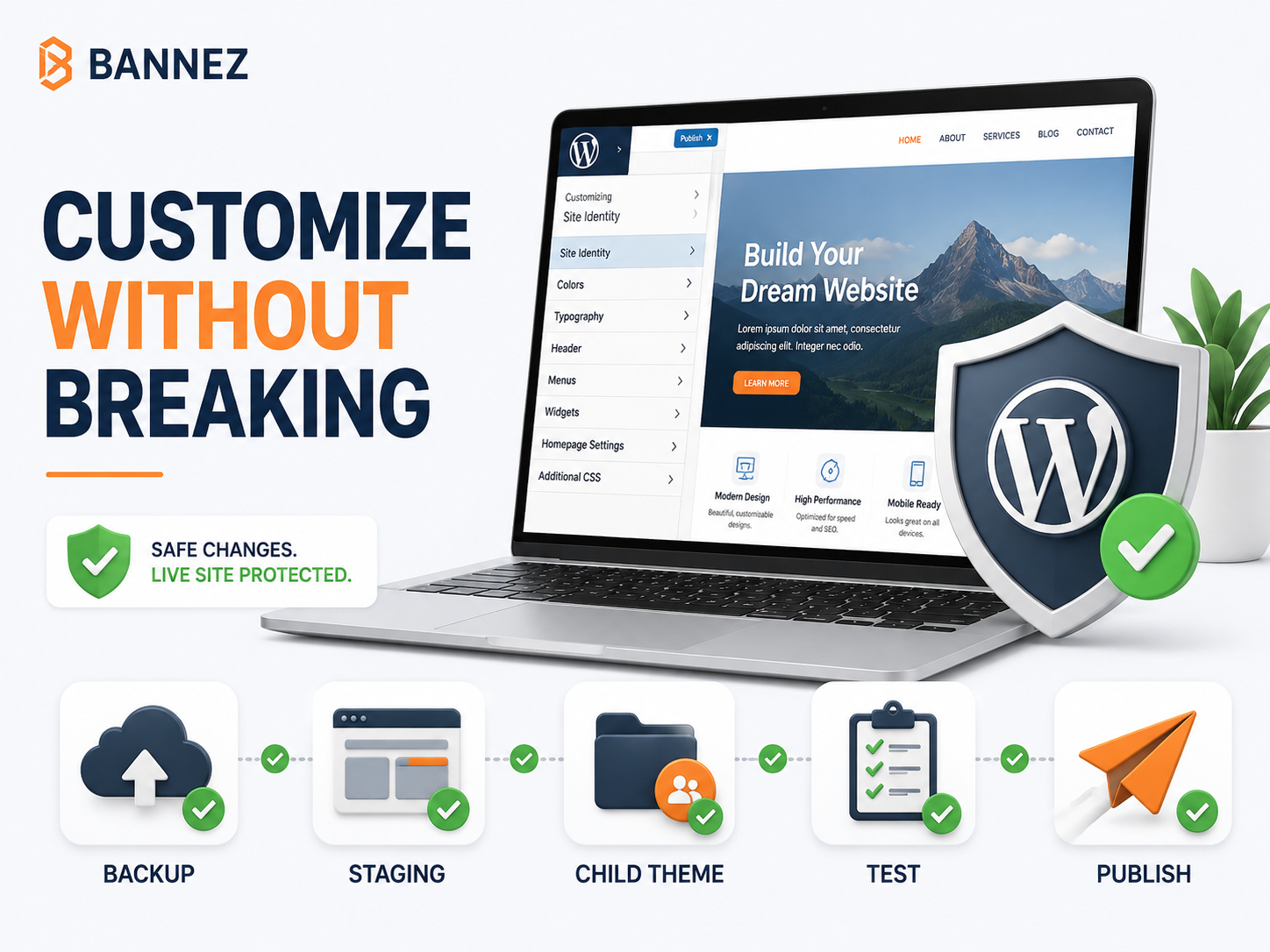
- A child theme does not protect against invalid PHP or insecure code.
- Outdated template overrides can conflict with parent updates.
- Parent and child themes must both remain compatible.
- Copying many parent files can make maintenance difficult.
- A child theme cannot provide features the parent or WordPress does not support without additional development.
How to Create a Child Theme Safely
- Create a complete backup.
- Work on a staging website.
- Confirm the parent theme’s exact directory name.
- Create a separate child-theme directory.
- Add a valid stylesheet header referencing the parent.
- Load styles according to the parent developer’s documentation.
- Activate the child theme and test every important page.
- Add only the files required for your changes.
- Document each customization.
Many premium themes include a ready-made child theme. Use the version supplied by the theme developer when available and compatible.
How to Test a Child Theme
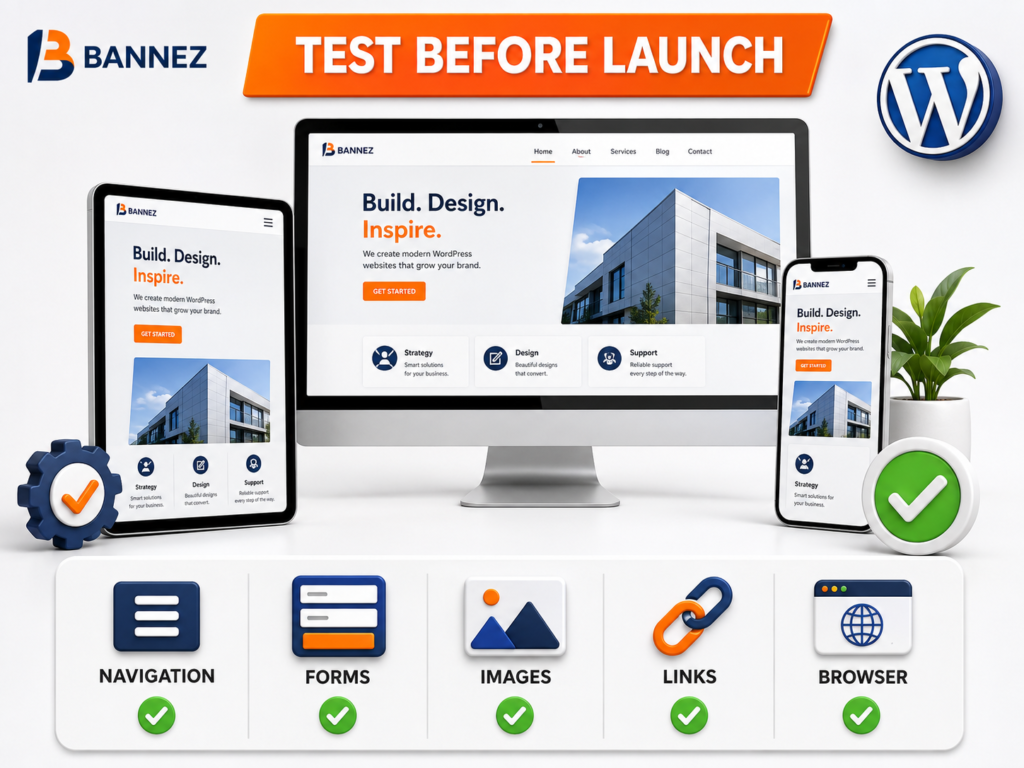
- Homepage, blog, archives, search, and 404 page
- Header, footer, desktop menu, and mobile menu
- Forms, buttons, links, and interactive elements
- Desktop, tablet, and mobile layouts
- Page-builder templates and reusable parts
- Store or account pages when applicable
- Parent-theme update on staging
Common Child Theme Mistakes
- Activating the child without installing the parent
- Using the wrong Template value
- Copying the complete parent theme
- Duplicating functions and causing fatal errors
- Keeping outdated template overrides
- Editing the live website without a backup
- Placing site-wide business functionality in the theme
When Professional Customization Helps
If your theme needs branding, layout, page, header, footer, or responsive changes, you can explore our Complete WordPress Website Customization with Any Theme service. Our team selects appropriate customization methods within the agreed scope and the supplied theme’s capabilities.
Frequently Asked Questions
Does a child theme slow down WordPress?
A properly built child theme is not automatically slow. Performance depends on its code, assets, queries, and the parent theme.
Can I create a child theme after customizing?
Yes, but existing changes must be identified and moved carefully. Back up and test on staging before changing the active theme.
Can I update the parent theme?
Yes. That is a main benefit, but test updates because parent changes can affect child templates and custom code.
Will a child theme protect all changes?
No. It protects its separate files from direct overwrite, but it cannot prevent code errors, incompatibility, or outdated overrides.
Conclusion: Use a Child Theme for the Right Kind of Work
Use a child theme when you need maintainable theme-specific file or code changes. Do not create one only because you changed a logo, edited page content, or selected colors through supported settings.
Keep the child small, documented, and tested. Combine it with backups, staging, version control, and update checks so it remains a useful maintenance tool rather than another source of complexity.
