
Why Your WordPress Demo Import Is Not Working and How to Fix It
Why Your WordPress Demo Import Is Not Working and How to Fix It
A WordPress demo import can fail at 5%, stop near completion, show a blank screen, or finish without importing all pages and images. The error may look serious, but the cause is often a server limit, missing plugin, wrong theme package, blocked remote file, or repeated import attempt.
This guide explains how to diagnose and fix common WordPress demo import problems safely. Start with a backup and identify the cause before pressing the import button again.
Quick Reasons a WordPress Demo Import Fails
- The wrong theme ZIP or incomplete theme package is installed.
- Required plugins are missing, inactive, or incompatible.
- PHP memory or execution time is too low.
- The hosting account has limited CPU, disk space, or file permissions.
- The server blocks remote image or data downloads.
- The demo importer cannot write files to the uploads directory.
- The import file is too large for the upload limit.
- A security plugin, firewall, or CDN blocks the request.
- The importer was run more than once and created partial duplicates.
- The theme or importer is not compatible with the current environment.
Before You Retry the Demo Import
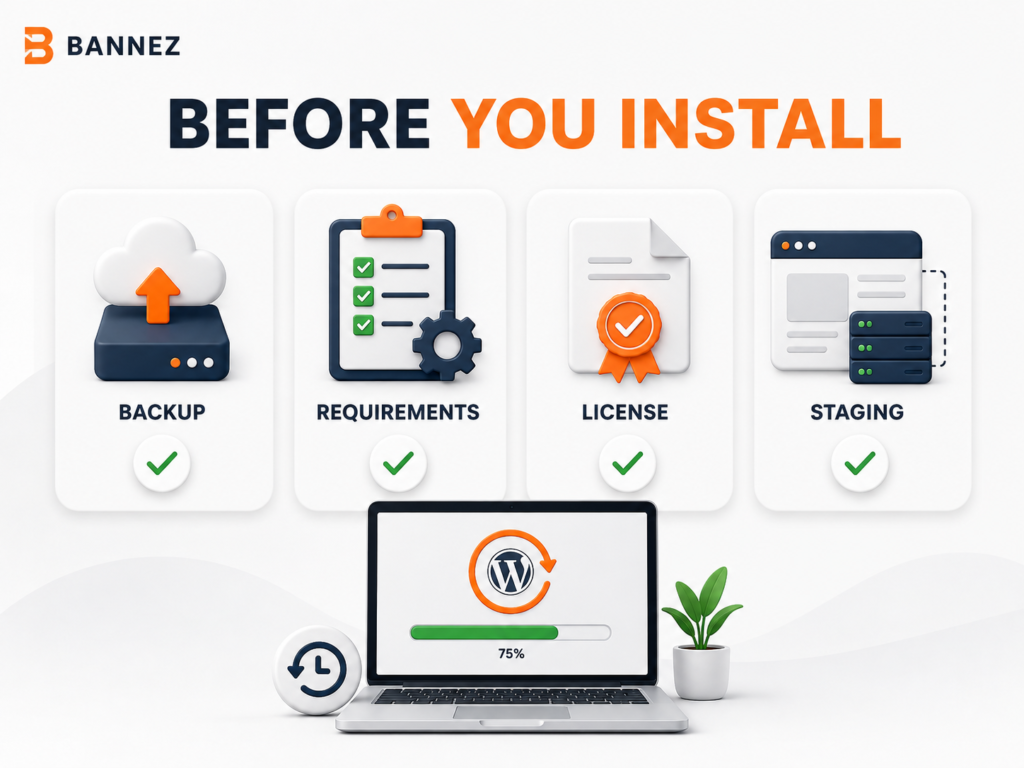
Create a Complete Backup
Back up the files and database. Demo importers can add pages, posts, products, menus, widgets, options, media, and plugin data. A backup gives you a clean recovery point.
Use a Clean or Staging Website
A clean staging installation is the safest place to import a full demo. If the live website already contains important content, test separately before applying changes.
Read the Theme Developer’s Documentation
Use the importer and steps supplied for that theme. Some themes require a setup wizard, while others provide XML, JSON, widget, or customizer files.
1. Confirm You Installed the Correct Theme Files
Marketplace downloads often contain documentation, licenses, child themes, plugins, and the installable theme ZIP inside one larger package. Uploading the wrong ZIP may install incorrectly or leave required files unavailable.
- Extract the full download package on your computer.
- Find the installable parent-theme ZIP.
- Install the child theme only when the documentation requires it.
- Confirm that the expected theme is active under Appearance > Themes.
2. Install and Activate Required Plugins
Demo layouts may depend on a page builder, block library, forms plugin, custom fields plugin, or theme core plugin. If one is missing, sections can disappear or the importer may stop.
Check for Plugin Conflicts
Temporarily deactivate non-essential plugins on staging, keep the theme-required plugins active, and retry only after creating a backup. If the import works, reactivate the other plugins one at a time to identify the conflict.
3. Check PHP and Server Limits
| Limit | Why it matters | What to do |
|---|---|---|
| memory_limit | Controls memory available to PHP | Ask the host to meet the theme’s documented requirement |
| max_execution_time | Controls how long an import request can run | Increase it temporarily when the host permits |
| max_input_time | Limits time spent processing input | Review it for large imports |
| upload_max_filesize | Limits the uploaded import file | Set it above the file size |
| post_max_size | Limits total POST request size | Keep it above the upload limit |
| Disk space | Media and generated sizes require storage | Free space or increase the hosting allowance |
Do not copy random high values into configuration files. Use the theme’s requirements and ask your hosting provider what is safe for your plan.
4. Fix Timeout and 500 Errors
A timeout usually means the process ran longer than the server allowed. A 500 error can come from memory exhaustion, a fatal PHP error, permissions, or a server rule.
- Check the WordPress Site Health information and hosting error log.
- Confirm enough memory and execution time are available.
- Deactivate non-essential plugins on staging.
- Clear the website and server cache.
- Import individual parts instead of the complete demo if the tool supports it.
- Ask the theme developer or host to interpret the exact logged error.
5. Fix Missing Images or Incomplete Media
The content may import while remote images fail. This can happen when the source server blocks requests, the destination cannot make outbound requests, SSL verification fails, or the process times out.
- Confirm that the uploads folder is writable.
- Check disk space and PHP limits.
- Ask the host whether outbound HTTPS requests are allowed.
- Verify that the source image URLs still work.
- Use your own licensed images when demo media is unavailable.
6. Check File and Folder Permissions
WordPress must be able to write to its uploads directory and other locations used by the importer. Incorrect ownership or permissions can prevent media and generated files from being saved. Ask your hosting provider to verify the correct permissions instead of making folders broadly writable.
7. Check REST API, Loopback, Firewall, and Security Blocks
Modern importers may use the WordPress REST API, AJAX, loopback requests, or remote downloads. Review Tools > Site Health for reported REST API or loopback issues.
Temporarily disabling a security rule may help identify the cause, but do it only on staging and restore protection afterward. Check CDN, hosting firewall, ModSecurity, and security-plugin logs for blocked requests.
8. Avoid Duplicate Content After a Partial Import
Do not press Import repeatedly without reviewing the result. Multiple attempts can create duplicate pages, posts, products, menus, media, and widgets.
Choose the Safest Recovery Method
- Restore the clean backup and import again after fixing the cause.
- Use the importer’s cleanup option if the theme provides one.
- Remove duplicates manually only when you can identify them safely.
- Import individual missing parts instead of repeating the full demo.
9. Use the Correct WordPress Import Tool
If the theme supplies a WordPress WXR file, use Tools > Import > WordPress. The official WordPress Tools Import documentation explains that the WordPress importer can bring in posts, comments, custom fields, pages, and categories from an export file.
A WXR import is not always the same as a theme’s one-click demo import. Theme-specific settings, widgets, templates, and plugin data may require separate files or the theme’s own importer.
10. Check the Result After the Import Completes
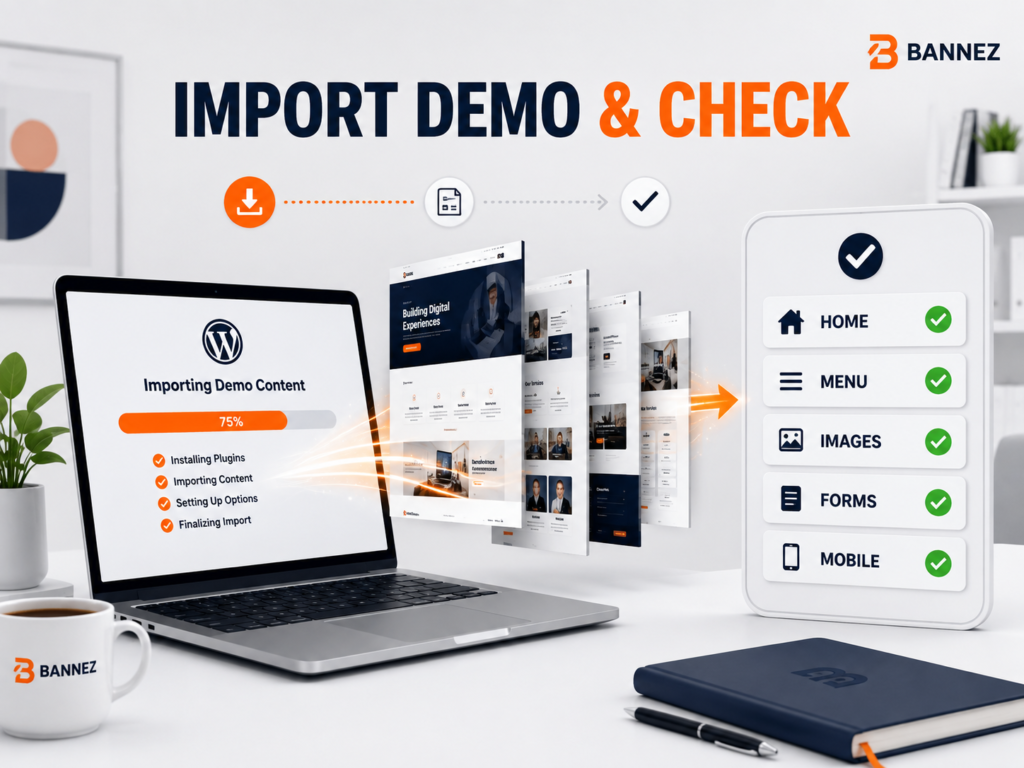
- Set the correct homepage under Settings > Reading.
- Assign the main and footer menu locations.
- Check that required plugins remain active.
- Open every important page and template.
- Test forms, buttons, links, and mobile layouts.
- Replace demo text, images, contact details, and social links.
- Delete unused or duplicate sample content.
WordPress Demo Import Troubleshooting Checklist
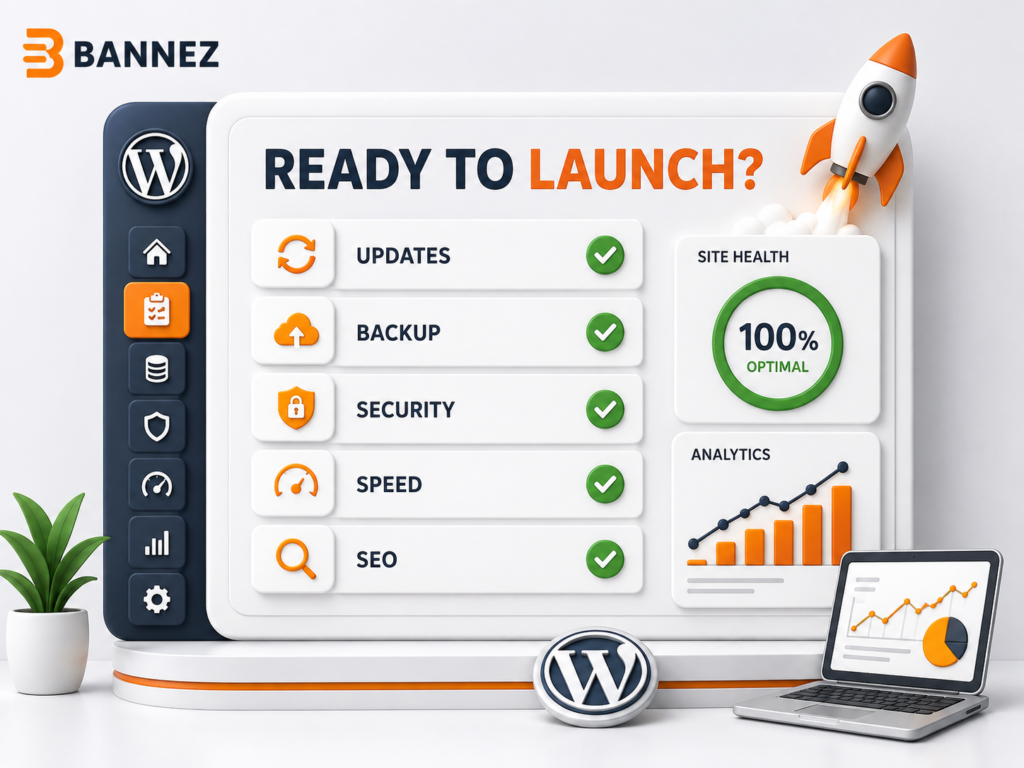
- ☐ Backup created and restoration method known
- ☐ Correct theme and child theme installed
- ☐ Required plugins active
- ☐ PHP and hosting limits reviewed
- ☐ Disk space and permissions checked
- ☐ REST API and loopback tests pass
- ☐ Firewall and security logs reviewed
- ☐ Import attempted only once after the fix
- ☐ Homepage, menus, forms, and media verified
- ☐ Demo content replaced or removed
When to Ask for Professional Help
If you have the theme files but do not want to troubleshoot the technical setup yourself, you can explore our WordPress Theme Installation & Demo Setup service. Our team can handle the installation and available demo setup within the service scope. Hosting limitations, broken third-party packages, and unsupported theme features may still require help from the host or theme developer.
Frequently Asked Questions
Why does the demo import stay at 0%?
The request may be blocked before processing begins. Check required plugins, REST API and AJAX requests, security rules, permissions, and the browser console or server logs.
Why does the importer stop at 99%?
The final step may be generating files, saving options, or processing media. Wait before closing the page, then check logs and the imported content instead of immediately running the full import again.
Can I retry a failed demo import?
Yes, but first identify the error. Restoring the clean pre-import backup is safer than importing repeatedly into a partially changed database.
Why are demo images missing?
The remote media may be unavailable, blocked, unlicensed for redistribution, or unable to download because of server restrictions or timeouts.
Conclusion: Fix the Cause Before Retrying
A failed WordPress demo import is usually a symptom, not the real problem. Verify the correct theme package, required plugins, PHP limits, server resources, permissions, remote requests, and security rules before trying again.
Use staging, keep a clean backup, and review logs whenever possible. After a successful import, complete the homepage, navigation, media, form, mobile, and content checks so the website is not only imported but genuinely ready to customize.
