
How to Build a Professional Squarespace Website
A professional Squarespace website should do more than look attractive. It should make your business easy to understand, help visitors find the right information quickly, work smoothly on mobile devices, and guide people toward a clear next step.
The good news is that Squarespace gives beginners a strong starting point with built-in page layouts, sections, blocks, responsive design, and simple site-wide style controls. The real difference comes from how well you plan and organize the website before you start adding visual details.
This guide explains how to build a professional Squarespace website step by step, from planning the structure to testing the final site before launch.
1. Decide What Your Squarespace Website Must Achieve
Start with the business goal. A professional website needs a clear purpose. If you begin with colors and images before deciding what the site should achieve, the design can quickly become confusing.
Write down these three things first
- Your main audience: Who should the website attract?
- Your main offer: What product, service, information, or action matters most?
- Your main conversion: What should a visitor do next: contact you, book, buy, subscribe, request a quote, or visit a location?
Keep this goal visible while you build the site. Every important page should support it.
2. Plan the Website Structure Before Designing
Professional websites are easier to use when the page structure is simple. Create a short site map before building individual sections.
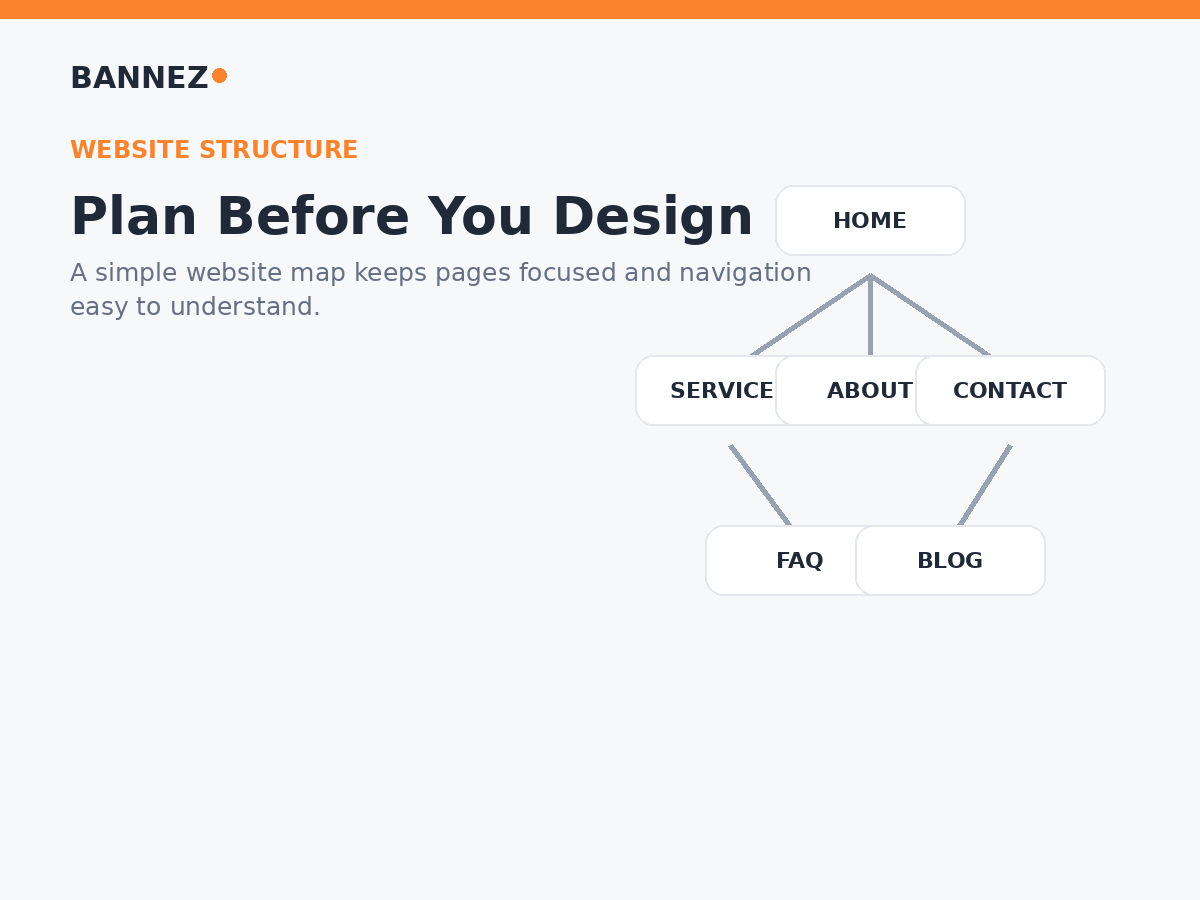
A practical small-business structure may include
- Home
- Services or Products
- About
- Portfolio, Projects, or Work Examples when relevant
- Blog or Resources when you plan to publish useful content
- FAQ
- Contact
- Required policy pages
Do not add pages only to make the website look larger. Every page should have a clear purpose. Squarespace explains how pages and navigation work in its official guide to adding pages to navigation.
3. Choose a Suitable Squarespace Starting Layout
A template or pre-built layout is a starting point, not the final website. Choose a design that already supports the type of content you need instead of selecting it only because the demo photos look impressive.
Check whether the starting layout supports
- Your page structure
- Your preferred navigation style
- Service, product, portfolio, or blog content
- Strong mobile layouts
- Forms, appointments, ecommerce, or other required features
Squarespace’s official first-site guide recommends building the site around structure, content, and styling. That order is useful because good content planning usually leads to a cleaner design.
4. Create a Simple Brand System
A professional Squarespace website should feel consistent from the first section to the footer. You do not need many colors or fonts. A small system is easier to manage and usually looks more polished.

Keep these elements consistent
- Logo size and spacing
- Primary and secondary colors
- Heading font
- Body font
- Button style
- Section spacing
- Image style
- Icon style
Use enough contrast between text and backgrounds, and keep body text easy to read. Decorative design should support the content, not compete with it.
5. Build a Clear Homepage
Your homepage should explain the business quickly. A new visitor should not need to study several sections before understanding what you offer.
A strong homepage can follow this order
- Hero section: Say what you do and who it is for.
- Main call to action: Give visitors one clear next step.
- Services or key offers: Introduce the most important solutions.
- Reasons to choose you: Explain practical differences and benefits.
- Trust elements: Add genuine reviews, results, experience, or project examples where available.
- Process: Show how customers can get started.
- Final call to action: Repeat the next step near the bottom of the page.
Avoid filling the homepage with every detail. Use it as a clear overview and link visitors to deeper pages when needed.
6. Build Useful Service or Product Pages
Important services should usually have their own useful pages. A dedicated page gives you space to explain the offer clearly and creates better internal-linking opportunities.
A useful service page should answer
- What is the service?
- Who is it for?
- What problem does it solve?
- What is included?
- What should the customer prepare?
- How does the process work?
- What should the visitor do next?
If you want help setting up, designing, or customizing your site, you can explore our Create or Customize a Responsive Squarespace Website service.
7. Make the About Page Support Trust
Your About page should help visitors understand the people, company, or purpose behind the website. Avoid filling it with vague marketing statements.
Useful About page content may include
- Who you are
- What you do
- Who you help
- Relevant experience
- Your working approach
- Real photos or team information when appropriate
- A clear link to contact, services, or another next step
8. Make Contact Easy
A beautiful site still fails if visitors cannot reach you. Keep contact information easy to find in the main navigation, footer, or both.
Use only the contact methods you actually monitor. Depending on the business, this may include a form, email address, phone number, booking link, physical location, operating hours, or service area.
Keep forms focused
Ask only for information you genuinely need. Long forms can create unnecessary friction when a simple name, email, subject, and message would be enough.
9. Use Squarespace Sections and Blocks Carefully
Squarespace lets you add content with sections and blocks. This flexibility is useful, but too many different section styles can make a website feel inconsistent.
The official Squarespace documentation explains that blocks can be used for text, images, buttons, forms, and other content, while version 7.1 also uses customizable page sections.
Use each section for one main job
- Explain one idea
- Show one group of services
- Present one trust signal
- Answer one common question
- Guide visitors toward one action
When every section has a clear purpose, the page becomes easier to scan.
10. Make the Squarespace Website Mobile Friendly
Mobile usability should be checked throughout the build, not only at the end. Squarespace uses responsive design so content can adapt to different screen sizes, but you still need to review how your real content behaves.
Squarespace’s current responsive design guide explains how site content adjusts across devices.
Check these areas on a real phone
- Header and navigation
- Headline wrapping
- Button size and spacing
- Image cropping
- Forms
- Columns and stacked content
- Footer links
- Long tables or embedded content
Do not assume that a desktop layout will automatically feel perfect on a small screen. Review every important page.
11. Complete Basic On-Page SEO
Good Squarespace SEO starts with useful content and clear page topics. Avoid stuffing the same keyword into every paragraph.
For each important page, check
- A clear page topic
- A useful page title
- A readable URL slug
- One clear H1
- Logical H2 and H3 headings
- A helpful meta description
- Natural internal links
- Descriptive image alt text where appropriate
- Useful content that answers the visitor’s real question
Squarespace page settings include controls for URLs, featured images, and SEO descriptions. See the official page settings guide for current options.
12. Keep Navigation Simple
Main navigation should help visitors reach the most important pages quickly. Use familiar labels such as Services, About, Blog, and Contact rather than creative labels that require explanation.
A simple navigation checklist
- Keep the number of top-level items reasonable
- Group related pages when needed
- Make Contact or Booking easy to reach
- Move less important links to the footer
- Remove old or duplicate pages
13. Add Trust Information Where It Matters
Trust comes from useful and accurate information. Add proof only when it is real and relevant.
Examples of useful trust elements
- Real customer reviews
- Case studies or project examples
- Clear business contact details
- Team information
- Relevant certifications or partnerships
- Clear refund, shipping, privacy, or service policies when applicable
Avoid fake counters, invented testimonials, or decorative badges that do not represent real information.
14. Test the Website Before You Publish
Do not launch immediately after finishing the last section. A short quality review can catch broken links, missing content, form problems, and mobile layout issues.
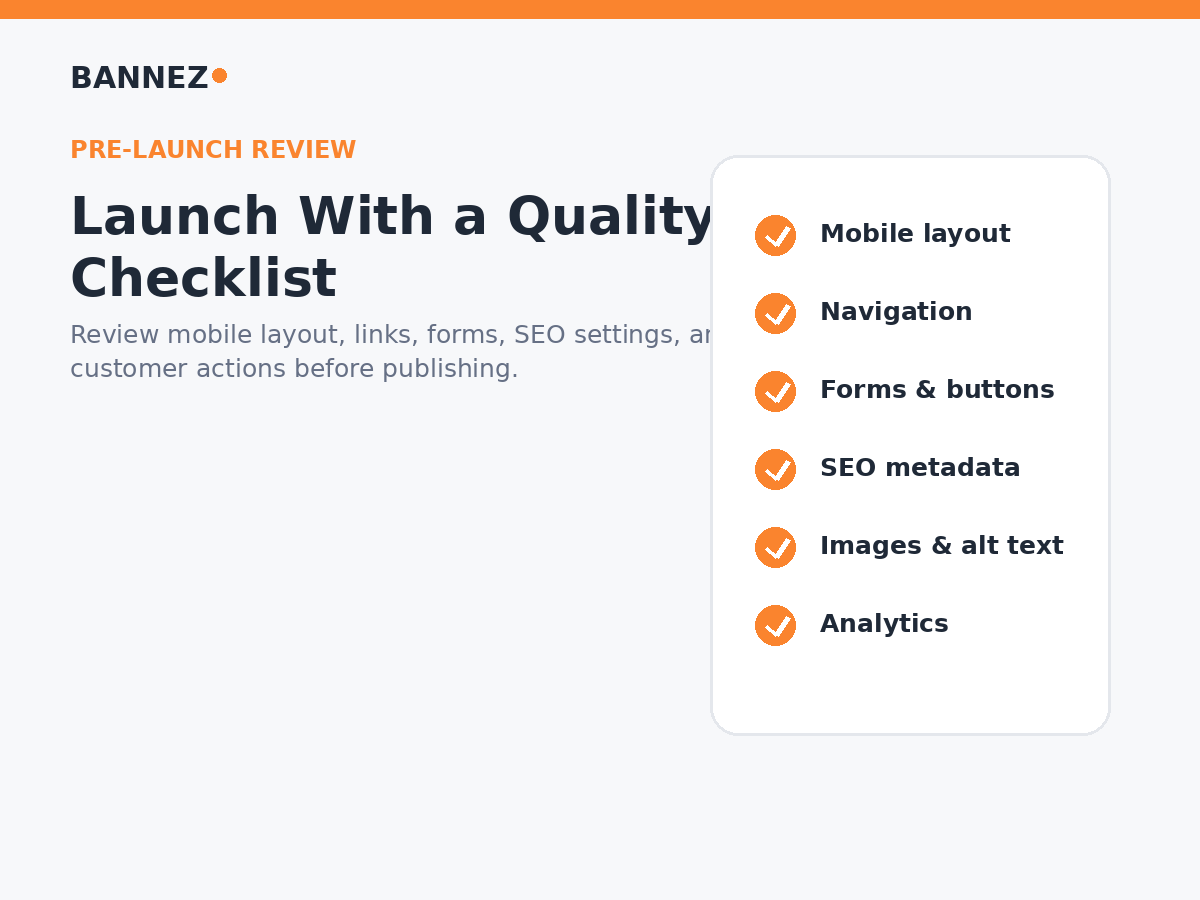
Final Squarespace website launch checklist
- Click every main navigation link
- Test all important buttons
- Submit every contact or booking form
- Check phone and email links
- Review desktop, tablet, and mobile layouts
- Remove demo text and placeholder images
- Check page titles and meta descriptions
- Review important image alt text
- Check footer links
- Test ecommerce or booking flows if used
- Confirm analytics and required integrations
- Proofread important business information
Professional Squarespace Website Checklist
| Area | What to check |
|---|---|
| Goal | The website has one clear business purpose |
| Structure | Pages are easy to understand and navigate |
| Branding | Colors, fonts, buttons, and images feel consistent |
| Content | Important pages answer real customer questions |
| Mobile | Pages are readable and usable on smaller screens |
| SEO | Titles, headings, URLs, metadata, and internal links are clear |
| Trust | Business information and proof are accurate |
| Testing | Forms, buttons, links, and key actions work correctly |
Frequently Asked Questions
Can a beginner build a professional Squarespace website?
Yes. Squarespace is designed to make website building more accessible, but a professional result still depends on planning, content quality, consistent design, mobile review, and careful testing.
How many pages should a Squarespace website have?
Use enough pages to explain the business clearly. A focused small business may need only a few core pages, while a company with several different services may benefit from separate service pages.
Do I need custom code to make Squarespace look professional?
No. Many professional websites can be created with standard Squarespace tools. Custom code can be useful for specific requirements, but it should not be the first solution for basic layout and branding.
Should I design desktop or mobile first?
Plan both together. You can build on desktop, but review mobile frequently so you do not discover major spacing, image, or layout problems at the end.
What should I improve after launch?
Use real visitor questions, analytics, search performance, form activity, and customer feedback to find pages that are unclear or underperforming. Improve content and navigation based on evidence instead of redesigning the whole site without a reason.
Conclusion
To build a professional Squarespace website, start with clear goals and a simple page structure. Then create a consistent brand system, write useful content, make contact easy, review mobile layouts, complete basic SEO settings, and test every important action before publishing.
After launch, keep the website current. Update old information, improve weak pages, add useful content, and remove anything that no longer supports the customer journey. A professional website is not defined by how many effects it uses. It is professional when visitors can understand it, trust it, and use it without confusion.
If you want to compare Squarespace with another popular website builder before committing to a platform, you can also read our Wix vs Squarespace website builder comparison.
