

How to Add Google Ad Manager Ads to WordPress
Adding Google Ad Manager ads to WordPress requires two systems to work together: Ad Manager must define and serve the inventory, while WordPress must load the correct Google Publisher Tag code in the right parts of the website.
The safest approach is to plan inventory first, generate tags from Ad Manager, and then place those tags through a WordPress method that will not be overwritten by routine theme updates.
Before You Add Ad Manager Ads to WordPress
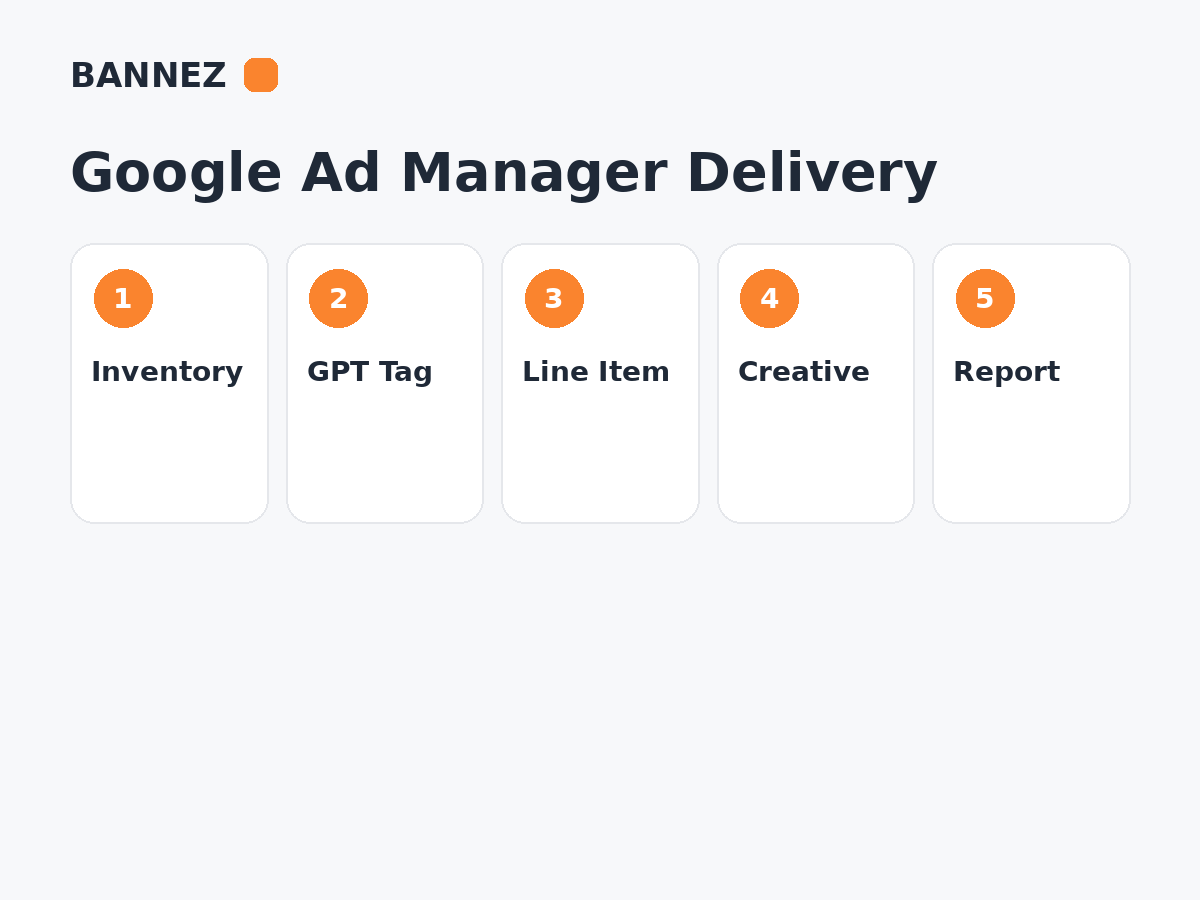
Make sure your Google Ad Manager network is ready and you understand the basic delivery chain. If you are new to the platform, start with our Google Ad Manager Setup Guide for Beginners.
You will normally need
- A Google Ad Manager network
- At least one ad unit
- Supported ad sizes
- Generated Google Publisher Tags
- Eligible line items or supported programmatic demand
- Compatible creatives where required
- A safe way to add code to WordPress
Step 1: Create the Ad Unit in Google Ad Manager
Ad units represent the locations where ads can appear. Google recommends using meaningful names so inventory remains easy to identify in targeting and reporting.
See Google’s official Create or configure an ad unit guide.
Example WordPress ad units
- article_top
- article_mid_1
- article_mid_2
- desktop_sidebar
- homepage_banner
The exact naming convention is your choice, but keep it consistent.
Step 2: Generate the Google Publisher Tag
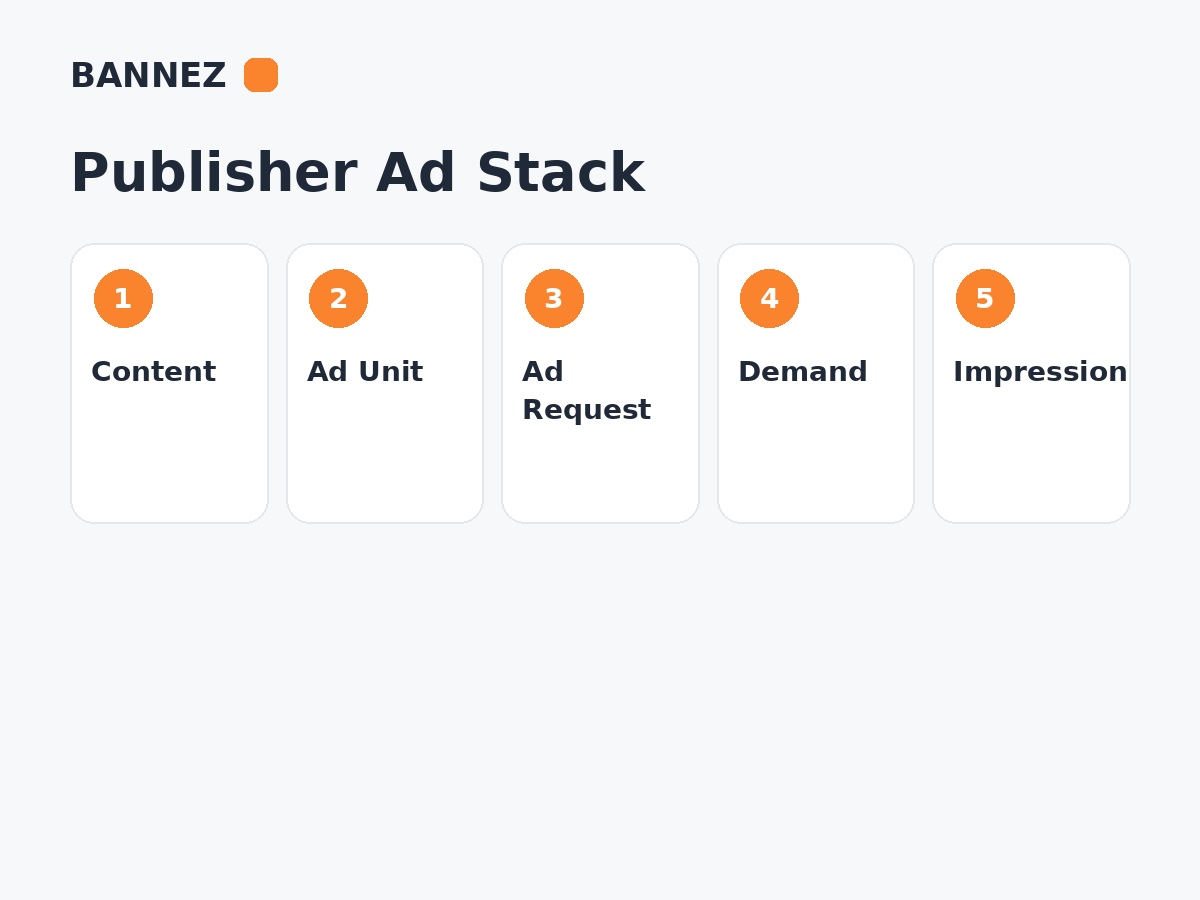
Google Publisher Tag, or GPT, is the library used to define web inventory, make ad requests and render matching demand from Ad Manager.
Google explains GPT in its current Google Publisher Tag overview. You can also generate tags from the Ad Manager interface using Google’s Generate ad tags instructions.
Step 3: Understand the Two Main Parts of GPT
Header or shared setup
The page normally loads the GPT library and defines ad slots and shared settings.
Ad-slot placement
The page also contains the element or call that displays a particular slot where you want the ad to appear.
Do not paste the entire setup repeatedly in every content block unless your implementation specifically requires it. Duplicate libraries or conflicting slot definitions can create delivery problems.
Step 4: Choose a WordPress Integration Method
There is no single required WordPress method. The correct choice depends on your theme, technical skill and how many placements you manage.
Common approaches
- A dedicated ad-management plugin that supports custom scripts
- A safe header/footer code manager for shared code
- Theme hooks or widget areas
- A child theme for controlled custom placement
- Custom blocks or shortcodes where appropriate
Avoid editing core WordPress files or a parent theme directly.
Step 5: Add the Shared GPT Code
Add the required GPT library and slot-definition code in the location specified by the generated tag and your implementation. Keep the code as close as possible to the supported Google output unless you understand the API changes you are making.
Step 6: Place Ad Slots in the Website Layout
Insert individual slot containers where ads should appear. Good placements depend on page type and screen size.
Common WordPress placement areas
- After the introduction
- Between article sections
- After the article
- Desktop sidebar
- Header or other designed banner area
If you need professional implementation help, you can explore our Website Ad Placement & Ad Network Integration service where its listed scope matches your setup.
Step 7: Make the Placement Responsive
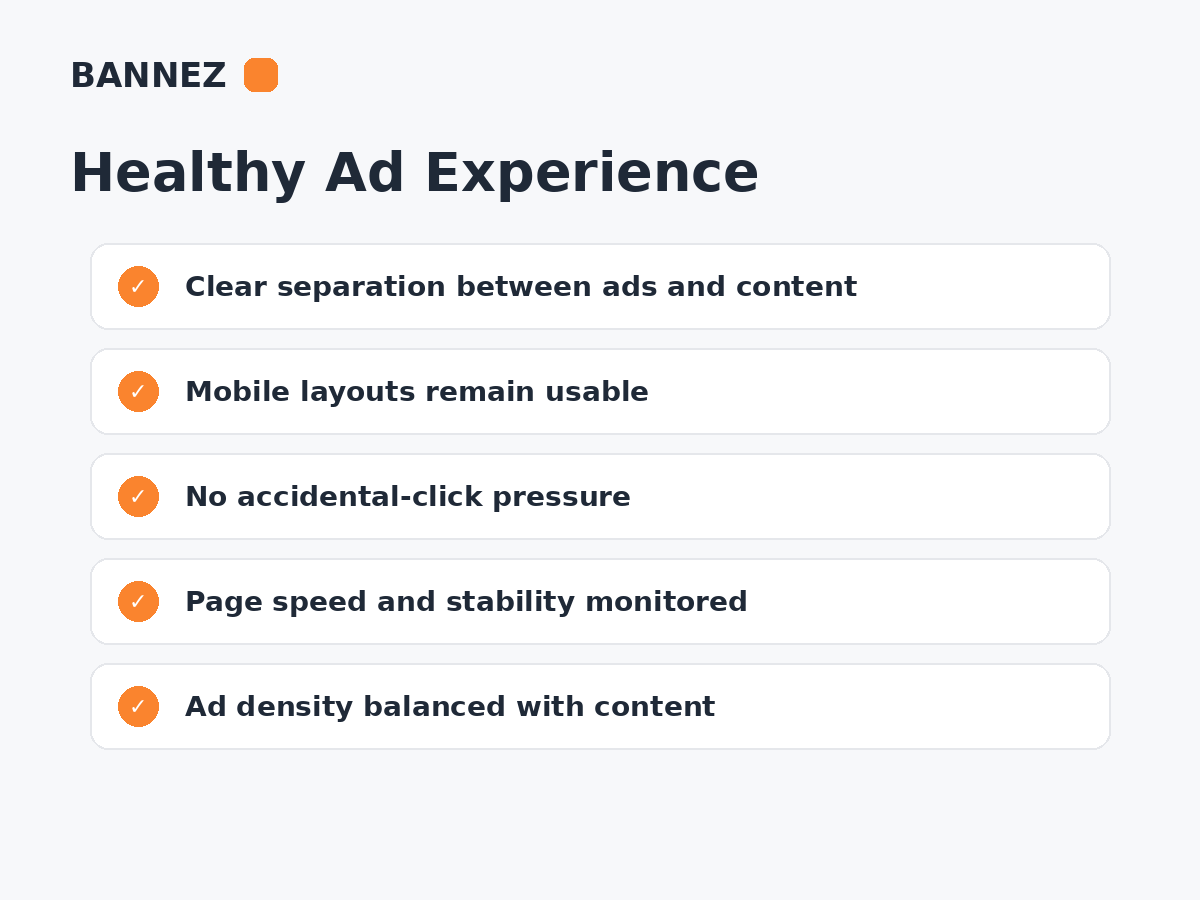
A WordPress page that works on desktop can still break on mobile if ad containers use inappropriate fixed sizes. Match slot sizes and CSS containers to the actual responsive layout.
- Prevent horizontal page overflow.
- Keep ads separated from navigation and buttons.
- Test portrait and landscape layouts.
- Do not let an ad cover important content.
- Reserve space where appropriate to reduce layout movement.
Step 8: Make Sure Demand Can Actually Serve
Correct WordPress code does not guarantee an ad will appear. Ad Manager still needs eligible demand. Direct campaigns require appropriate orders, line items and creatives. Programmatic demand also depends on account configuration and eligibility.
Step 9: Test the Ad Request
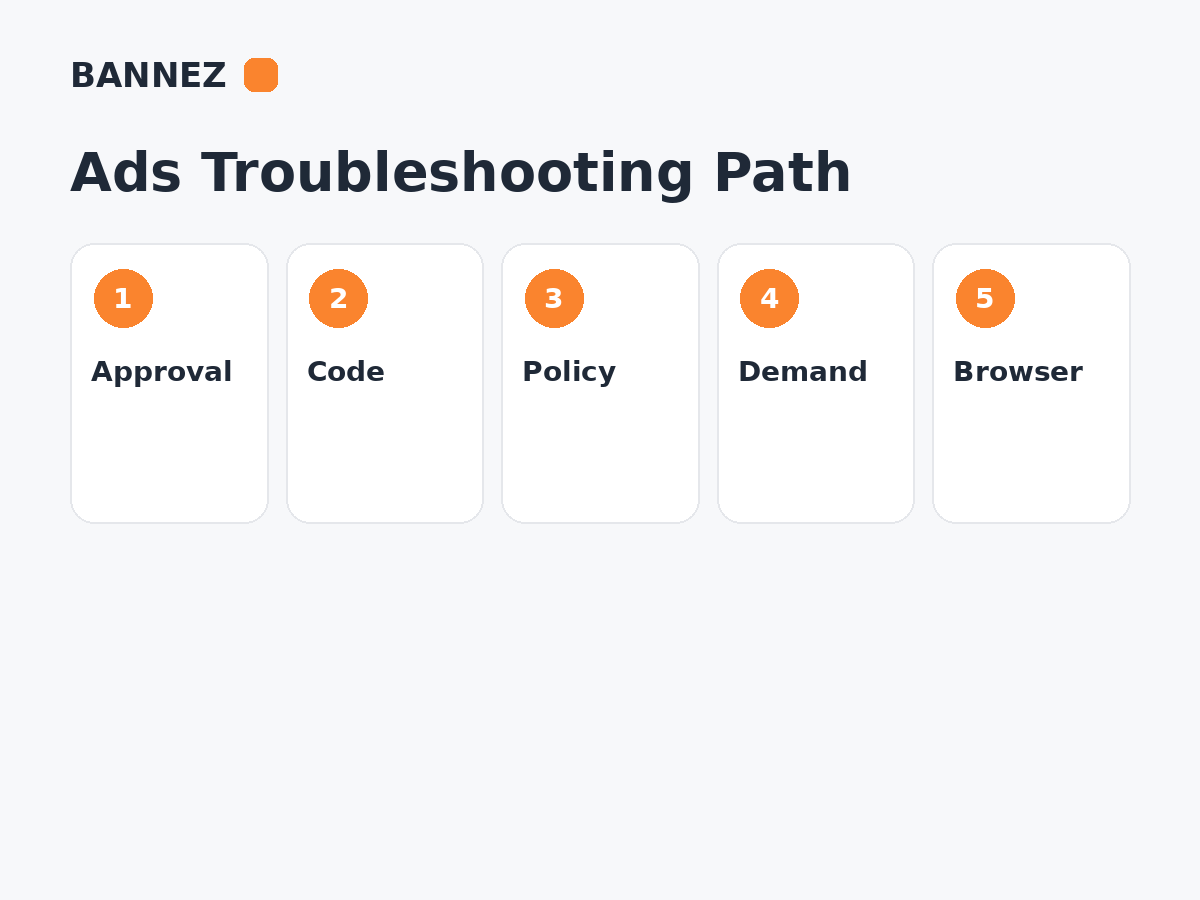
Check these items
- The GPT script loads.
- There are no duplicate slot IDs.
- The ad unit path is correct.
- The requested size matches Ad Manager.
- An eligible line item or demand source exists.
- A compatible creative exists.
- Targeting is not excluding the page.
- Your browser is not blocking advertising during the test.
For more diagnosis steps, read How to Fix Common Ad Manager and Website Ad Setup Problems.
Step 10: Monitor Reporting
After launch, review ad requests, impressions, unfilled impressions, viewability and revenue metrics by ad unit. A placement can be technically working but still underperform because it receives low demand, poor viewability or little traffic.
Common WordPress + Ad Manager Mistakes
- Loading GPT more than once
- Using the wrong network/ad-unit path
- Duplicating DOM IDs
- Placing a slot but forgetting eligible demand
- Using incompatible creative sizes
- Editing parent theme files
- Ignoring mobile layouts
- Using aggressive sticky behavior without following platform rules
- Adding too many third-party scripts around the ad stack
Google Ad Manager WordPress Checklist
- Ad units created
- Sizes match website containers
- GPT tags generated
- Shared script installed once
- Slot containers placed correctly
- Demand/line items configured
- Creatives available where required
- Mobile layout tested
- Ad requests verified
- Reporting reviewed
Frequently Asked Questions
Do I need a WordPress plugin for Google Ad Manager?
No. A plugin can make placement easier, but GPT can also be integrated through theme hooks, child-theme code or other controlled WordPress methods.
Why does the ad slot exist but stay blank?
The slot may be making a valid request with no eligible demand, or the request may have a size, targeting, creative or implementation problem.
Can I put Google Ad Manager code inside a blog post?
Yes, but repeated manual code inside post content can become difficult to maintain. Template-based or managed placement is often cleaner for recurring positions.
Can Google Ad Manager and AdSense both be used on WordPress?
They can be part of a publisher monetization setup depending on account configuration, but avoid duplicate or conflicting implementations and understand which system is serving each placement.
Conclusion
Adding Google Ad Manager ads to WordPress is a structured integration: define inventory in Ad Manager, generate GPT tags, place them through a maintainable WordPress method, ensure demand is eligible, and test real delivery.
Keep the setup documented. When a placement fails, troubleshoot the chain one step at a time instead of repeatedly changing code without knowing whether the issue is WordPress, the tag, targeting, creative or demand.
