
How to Add AdSense Ads to a WordPress Website
Adding AdSense to WordPress is usually straightforward, but the correct method depends on whether you want Google to place ads automatically or you want to control specific ad positions yourself.
Before adding code, make sure the site is connected to AdSense and approved to show ads. Adding code to an unapproved site does not bypass the site review process.
Before You Add AdSense to WordPress
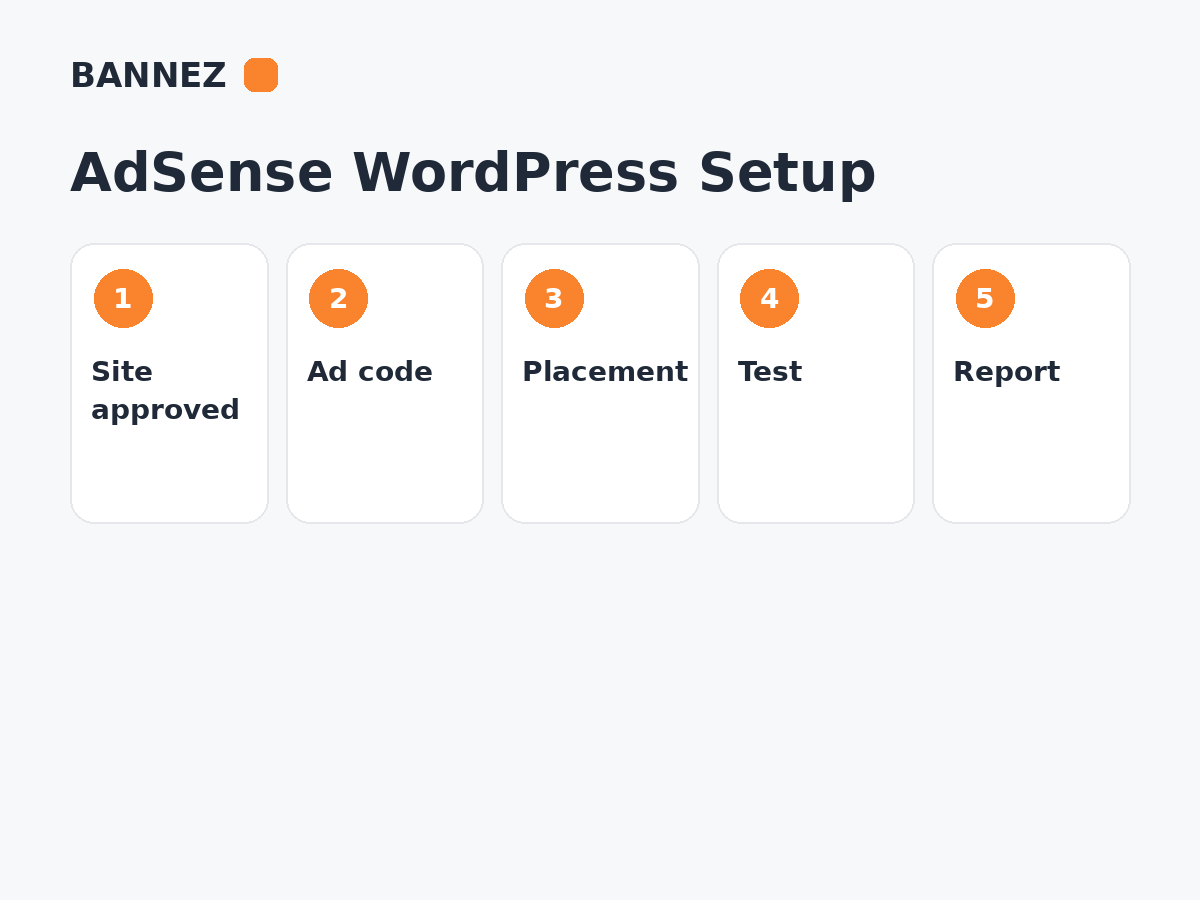
Check these basics first
- Your AdSense account is active.
- The website is listed in AdSense.
- The site has completed review and is ready to show ads.
- Your WordPress site is publicly accessible.
- You can safely add code through a theme, plugin or supported integration.
Google explains the current site connection and review process in its Connect your site to AdSense guide.
If your site is not approved yet, read our Google AdSense Approval: Complete Website Requirements & Checklist. If you want a readiness review, you can also explore our Free Website Analysis & Recommendations for Google AdSense Approval service.
Method 1: Add AdSense Auto Ads to WordPress
Auto Ads uses the main AdSense code across your site. Google then evaluates eligible areas and can place supported ad formats automatically based on your settings.
Google’s current Auto Ads setup guide explains how to enable formats, exclusions and ad-load settings.
Step 1: Get the AdSense code
- Sign in to AdSense.
- Open Ads.
- Choose Get code.
- Copy the provided AdSense code.
Google’s code guide says the main AdSense code belongs between the page’s <head> and </head> tags.
Step 2: Add the code to WordPress
You can add the code using an appropriate WordPress method such as a compatible ads/header-code plugin, a theme integration designed for scripts, or controlled theme customization.
Avoid editing a parent theme directly because theme updates can overwrite your change.
Step 3: Turn on Auto Ads
Inside AdSense, review the site preview and choose the Auto Ads settings that match your content. You can control supported in-page and overlay formats, page exclusions and excluded areas.
Method 2: Add Manual AdSense Ad Units
Manual ad units give you direct control over where a specific ad slot appears.
Step 1: Create an ad unit
In AdSense, open Ads, choose By ad unit, and create the format you need.
Step 2: Copy the ad unit code
Google notes that manual ad units use the relevant ad unit code in addition to the site-level AdSense setup where applicable.
Step 3: Place the code in WordPress
Google’s current WordPress ad-unit implementation guide lists plugins, themes and widgets as common ways to place ad code.
Good Places to Consider for Manual Ads
The best positions depend on page design, content length, device and user behavior. Common placements include:
- Below a page or article introduction
- Between major content sections
- After an article
- Desktop sidebar where appropriate
- Other clearly separated ad areas
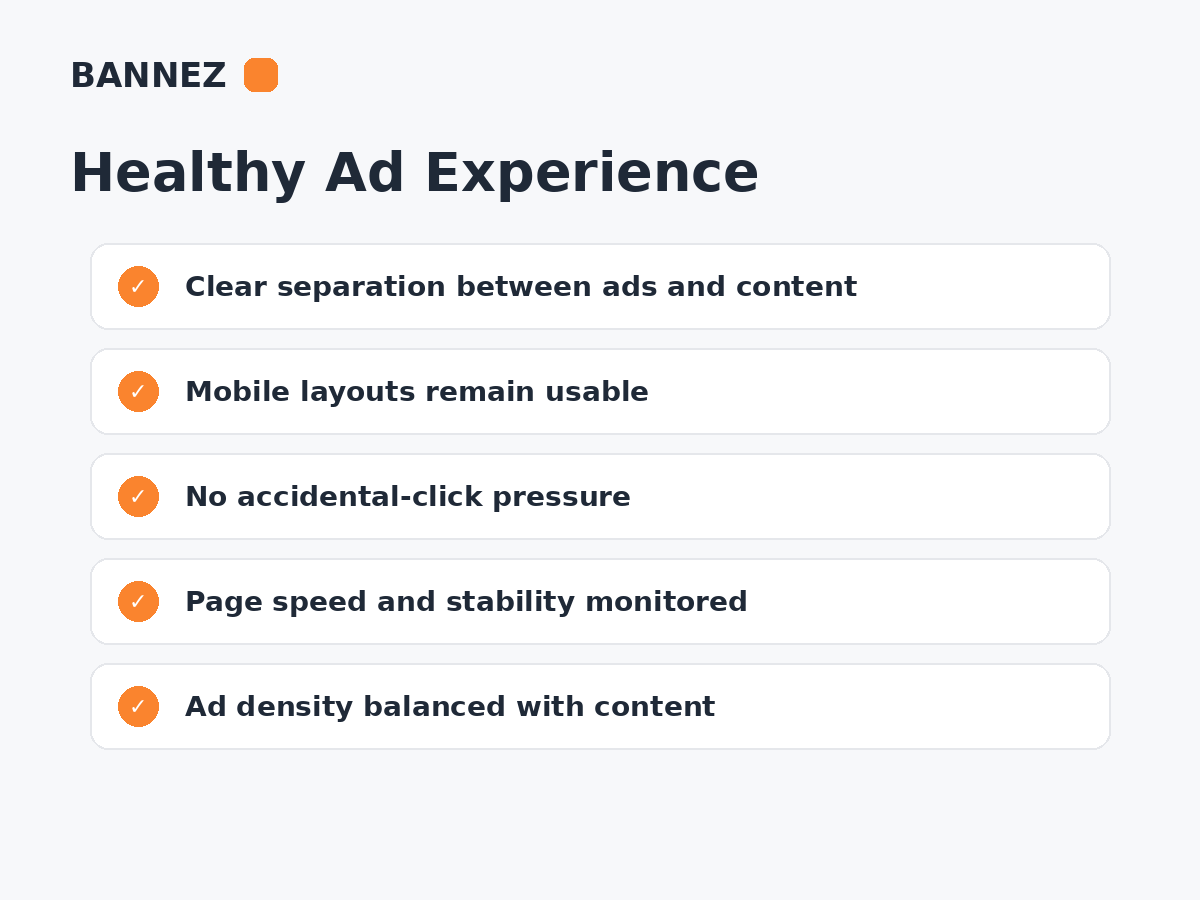
Do not place ads where visitors may confuse them with navigation, download buttons or normal content controls.
Auto Ads or Manual Placement?
Auto Ads is simpler and can automatically find eligible placements. Manual ads provide more predictable layout control. Many publishers use a combination, but overlapping implementations should be reviewed carefully.
For a detailed comparison, read AdSense Auto Ads vs Manual Ad Placement.
How to Avoid Layout Problems
- Test mobile and desktop separately.
- Do not insert fixed-width containers that overflow mobile screens.
- Reserve reasonable space where ads can load when possible.
- Avoid placing several ads close together without enough useful content.
- Check that sticky headers, chat widgets and ads do not overlap.
How to Test Whether AdSense Is Working
- Open a public page where the code is installed.
- Check page source or browser developer tools to confirm the script is present.
- Disable your own ad blocker while testing.
- Check for JavaScript or network errors.
- Confirm the site is approved in AdSense.
- Review AdSense reports after sufficient real traffic.
Ads may not appear immediately after a new setup. Google notes that Auto Ads can take some time to begin displaying after the code and settings are applied.
Common Reasons AdSense Ads Do Not Show
- Site review is incomplete.
- Ad code is missing or altered.
- A plugin or theme removes the code.
- An ad blocker hides the ad during your test.
- Policy or regulatory restrictions affect ad serving.
- The page receives no suitable ad for that request.
- Consent configuration blocks personalized or other ad serving where applicable.
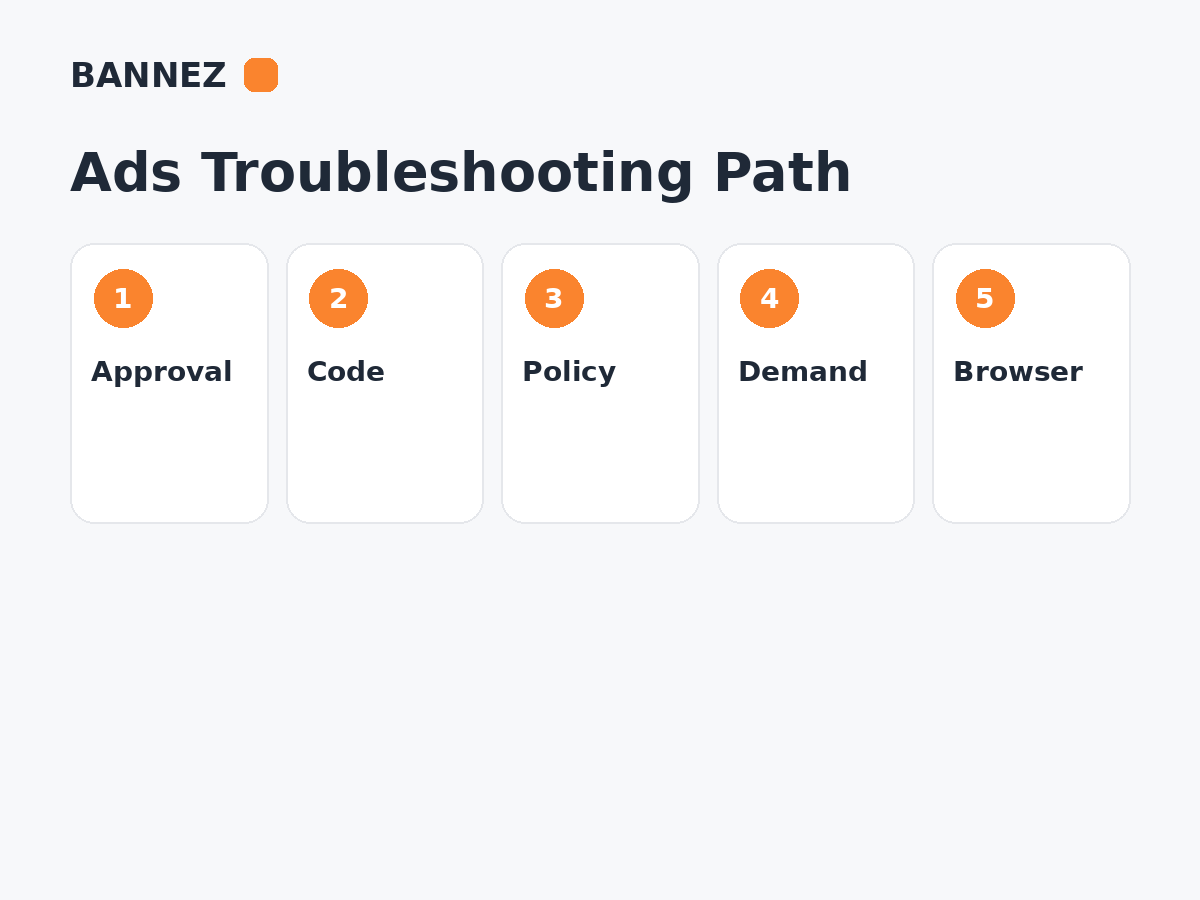
See our related guide: Why Ads Are Not Showing on Your Website.
Where Bannez Can Help
If your site is approved and you need help implementing ad code and suitable placements, you can explore our Website Ad Placement & Ad Network Integration service.
If AdSense shows an ads.txt warning or your website has an ads.txt/ad setup issue, you can explore our Fix Ads.txt Errors & Website Ad Setup Issues service.
AdSense WordPress Setup Checklist
- Site listed in AdSense
- Site approved to show ads
- Main AdSense code installed correctly
- Auto Ads settings reviewed if used
- Manual ad units placed only where intended
- Mobile layout tested
- No accidental-click design
- Ad blockers disabled during testing
- Policy Center checked
- Reports monitored after launch
Frequently Asked Questions
Can I add AdSense without a plugin?
Yes. WordPress can load AdSense through a suitable theme or custom integration. A plugin is simply one convenient method.
Where should I paste Auto Ads code?
Google instructs publishers to place the AdSense code between the page’s head tags so it is available across the site.
Can I use Auto Ads and manual ads together?
Yes, AdSense supports existing ad units alongside Auto Ads, but you should review ad load and page experience to avoid an overcrowded layout.
Why are ads blank after I installed the code?
Blank ads can result from approval status, implementation errors, policy restrictions, demand availability, browser blocking or other delivery conditions.
Conclusion
To add AdSense to WordPress safely, first confirm site approval, then choose between Auto Ads, manual ad units or a carefully managed combination. Install the code through a maintainable WordPress method and test every important page on mobile and desktop.
After launch, monitor ad delivery and user experience together. A technically working ad is only successful when it serves without making the page confusing, unstable or difficult to use.
