

Why Ads Are Not Showing on Your Website
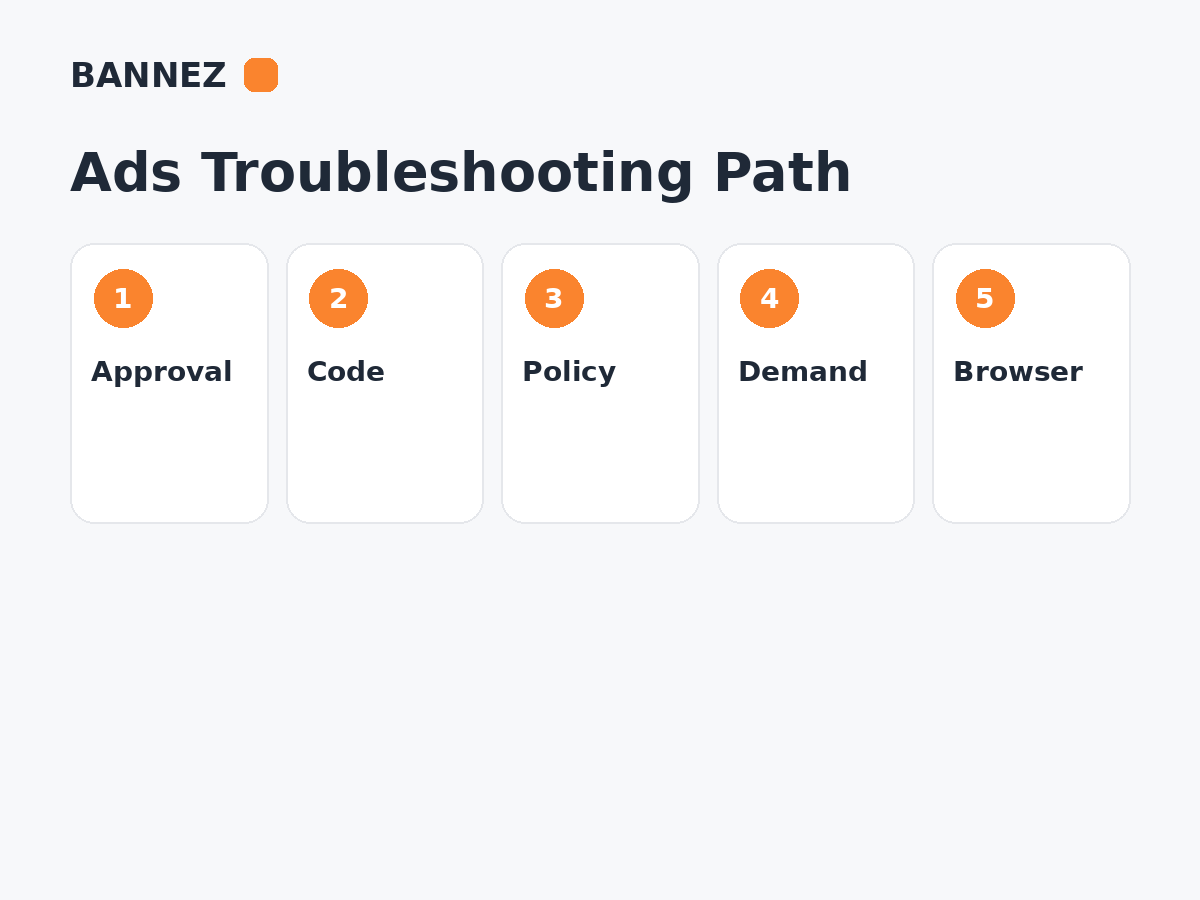
When ads stop showing, the cause is not always the ad network itself. A blank ad space can come from account or site approval, broken code, no eligible demand, targeting, policy restrictions, consent settings, ad blockers, or a website change that interrupts the request.
The fastest way to fix the problem is to troubleshoot the delivery chain in order instead of changing several settings at once.
First: Identify Which Ad System Is Failing
Before troubleshooting, confirm whether the affected placement is served by AdSense, Google Ad Manager, AdX through an eligible setup, or another ad network. Different systems use different controls and reports.
If you use Google Ad Manager, read Google Ad Manager Setup Guide for Beginners. For AdSense on WordPress, see How to Add AdSense Ads to a WordPress Website.
1. The Website Is Not Approved or Ready to Serve Ads
For AdSense, adding code does not automatically make a new site eligible to serve ads. The site must be connected and reviewed. Google describes the current process in its Connect your site to AdSense documentation.
If you are still preparing for approval, see our AdSense website requirements checklist. You can also explore our Free Website Analysis & Recommendations for Google AdSense Approval service.
2. The Ad Code Is Missing or Broken
A theme update, caching plugin, script optimizer, page builder, consent tool or manual edit can remove or alter ad code.
Check the live page
- Open page source.
- Search for the expected AdSense or GPT script.
- Confirm the publisher/ad-unit identifiers are correct.
- Check the browser console for JavaScript errors.
- Check the Network panel for blocked or failed requests.
For AdSense, Google’s AdSense code overview explains the site-level code.
3. Your Browser Is Blocking Ads
Ad blockers, privacy extensions, DNS filters, browser protections or security software can hide advertising during your own tests.
Test in a clean browser profile or incognito window with extensions disabled. Do not assume all users see a blank placement just because your own browser blocks it.
4. There Is No Eligible Ad Demand
A technically correct request can return no ad. Demand varies by country, device, content, ad size, advertiser competition and time.
In AdSense, Coverage helps show how often ad requests return ads. Read Google’s Coverage documentation.
In Ad Manager, unfilled inventory can reveal requests with no eligible creative. Google explains unfilled impressions.
5. Google Ad Manager Targeting Is Too Restrictive
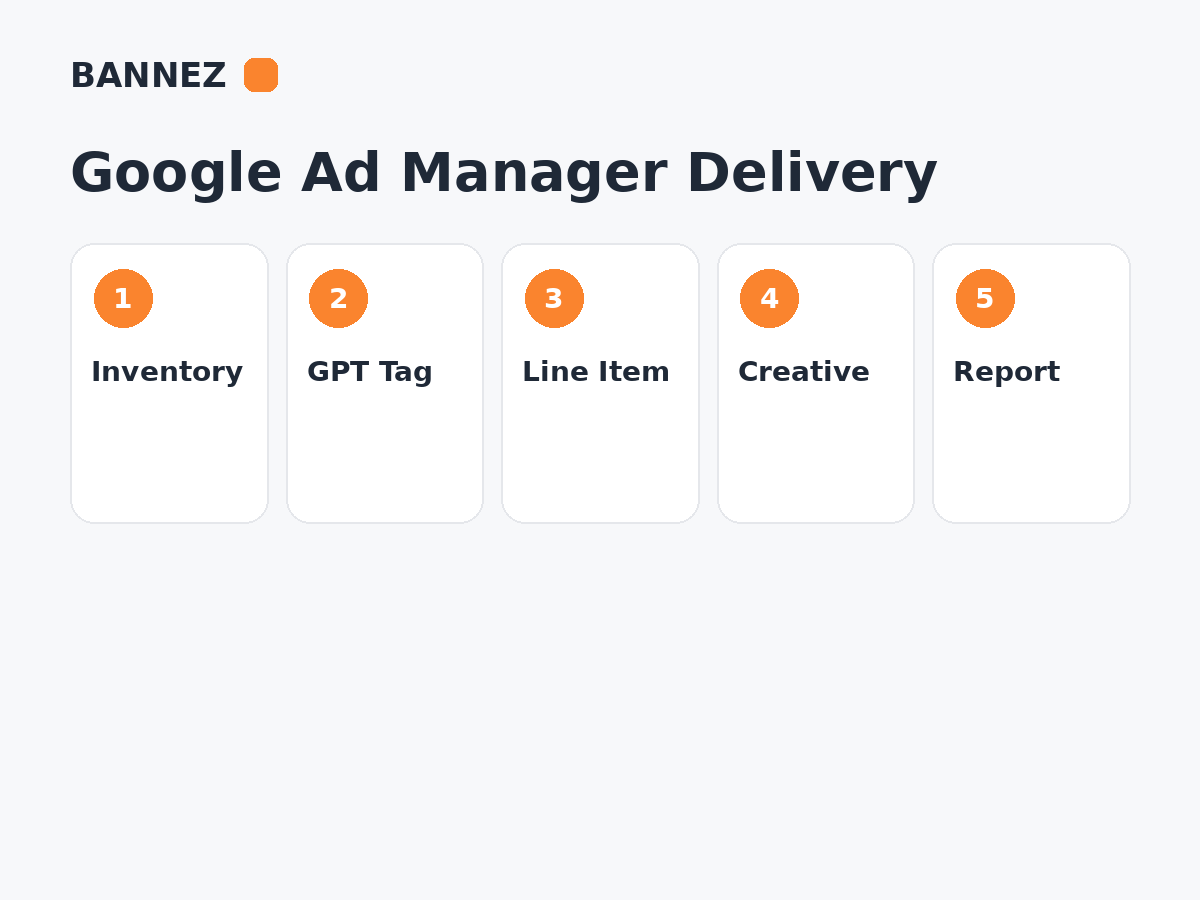
In Ad Manager, a line item can be active but still fail to serve if geography, device, key-values, inventory, frequency, dates or other targeting exclude the current request.
Check
- Line item status and dates
- Targeted ad units
- Creative sizes
- Geography
- Device targeting
- Key-values
- Frequency caps
- Delivery goals and priority
6. The Creative Does Not Match the Requested Size
Ad Manager needs a compatible creative for eligible direct line items. If the slot requests one size but the creative uses another unsupported size, delivery can fail.
7. Policy Enforcement Is Limiting Ad Serving
Policy issues can restrict or disable ad serving on specific pages, sites or accounts depending on severity and platform.
AdSense provides status information in Policy Center. Google’s current ad serving statuses documentation explains common enforcement states.
Fix the actual policy issue rather than attempting to hide it or move the same implementation elsewhere.
8. Consent or Privacy Configuration Is Affecting Delivery
In regulated regions, consent choices and privacy configuration can affect which ads are eligible to serve. A broken consent platform can also block ad scripts entirely.
Check whether the consent banner loads, stores the choice correctly and allows the ad system to receive the signals required for your setup.
9. Ads.txt Has a Problem
An ads.txt issue does not always make every ad disappear immediately, but incorrect or missing authorization can affect monetization and buyer confidence.
Read What Is Ads.txt and Why Is It Important? and How to Fix Ads.txt Errors in Ad Manager, AdSense & AdX.
If you need help with an ads.txt or ad setup problem, you can explore our Fix Ads.txt Errors & Website Ad Setup Issues service.
10. A Cache or Optimization Tool Changed the Script
Script delay, combine/minify features, CDN rewriting, lazy-loading plugins and performance tools can change when or how ad code runs.
Useful test
- Clear all caches.
- Temporarily exclude the ad script from optimization.
- Retest one page.
- If ads return, re-enable optimizations one by one.
11. The Ad Container Is Hidden by CSS
The ad request may succeed while the container is hidden, collapsed, positioned offscreen or covered by another element.
Inspect the ad element with browser developer tools and check width, height, display, visibility, overflow, z-index and responsive rules.
12. The Ad Has Not Started Serving Yet
New implementations and settings can take time to propagate. For example, Auto Ads may not appear immediately after activation.
Allow reasonable processing time, but do not use waiting as a substitute for checking code, approval and reporting.
13. The Page Has Too Little Eligible Content or a Special Layout
Automatic placement systems may decide not to insert an ad in every possible area. Some pages also have layouts that are not suitable for certain formats.
14. The Website Is Loading Too Slowly
If users leave or scroll past slots before ad requests and creatives complete, the site may appear to have unreliable advertising even when some requests eventually serve.
Read How Website Speed Affects Ad Revenue.
Step-by-Step Ad Troubleshooting Order
- Confirm the affected ad platform.
- Check account/site approval or network status.
- Check policy center and alerts.
- Disable local ad blockers for testing.
- Confirm the ad script exists on the live page.
- Check browser console and network errors.
- Verify ad unit IDs, paths and sizes.
- Check eligible demand, line items and creatives.
- Review consent and ads.txt.
- Temporarily isolate caching/optimization conflicts.
- Compare reports for requests, impressions and unfilled inventory.
Ads Not Showing Checklist
- Site approved
- Ad code present
- No ad blocker during test
- No major JavaScript errors
- Correct ad-unit IDs
- Compatible sizes
- Eligible demand available
- Policy status reviewed
- Consent setup checked
- Ads.txt checked
- Cache/optimization conflicts tested
Frequently Asked Questions
Why do ads show for some users but not others?
Demand, geography, consent, device, browser blocking and targeting can differ by user.
Why is my Ad Manager slot blank?
The request may have no eligible line item or demand, incompatible creative sizes, restrictive targeting or an implementation problem.
Does a blank ad mean my AdSense account is banned?
No. Blank ads can have many causes. Check account messages and Policy Center instead of assuming the reason.
Should I keep refreshing to test ads?
No. Repeated self-testing is not a reliable monetization test. Use browser developer tools and reporting, and avoid interacting with your own ads.
Conclusion
Ads fail to show when something breaks between eligibility, the page code, the ad request, demand and final rendering. Troubleshoot in that order so you can identify the actual failure point.
Start with approval and policy status, then verify the live code and demand. Once delivery works, monitor fill, viewability and page speed so the fix remains stable instead of solving only one blank ad slot.
